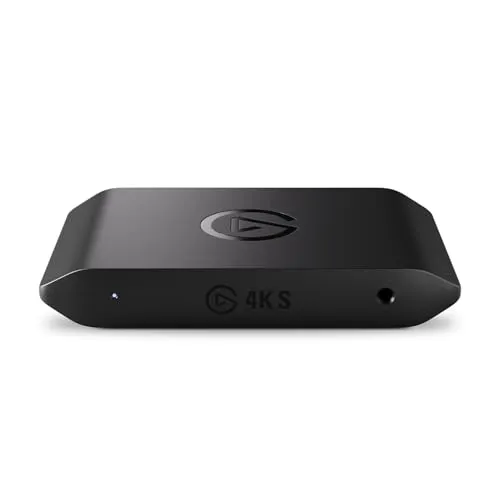
What does a capture card do? The short version
A capture card takes the HDMI output of a console, a camera, or a second PC and turns it into a video source your computer can record or stream. A second HDMI port passes the same signal straight through to your TV, so you keep playing on a normal screen while the card feeds your software. That is the whole job.
The Mechanism
How does a capture card work?
A console sends video out over HDMI, and the HDMI ports on a PC are outputs too. Two outputs pointed at each other do nothing. As Lenovo puts it in its own knowledge base, a USB-C port on a computer is built to send video out rather than receive it, and an HDMI input is normally handled by an external capture device. That is the capture card.
The wiring: one HDMI cable from the console into the port marked HDMI In, a second from the card’s HDMI Out to your TV, and a USB cable to your PC. AVerMedia describes the rest in four steps: the card accepts the signal, converts it into a digital format the computer can process, moves that data over PCIe or USB, and hands it to software such as OBS Studio, where it appears as a Video Capture Device source, the same type a webcam uses.
The Two Numbers
Passthrough vs capture, and why the box lists two resolutions
Every spec sheet carries a capture resolution and a passthrough resolution, and passthrough is usually the bigger number. Elgato defines them plainly: capture is the recording and streaming side of the card, while passthrough is the signal it sends to your TV so you can keep playing while recording.
They differ because passthrough does not encode, so it carries more than the capture path can. Elgato’s Game Capture 4K S captures up to 4K60 and passes through 4K60 or 1440p120, and HDR widens the gap: on the 4K X, HDR passes through at up to 4K144 while HDR capture tops out at 4K30. Elgato cards pass HDR through but record SDR.
Passthrough is also the feed you play on, and it is zero latency. The preview on your computer is not, because it adds encoding and rendering delay; Elgato puts its low latency Studio App preview at roughly 30 ms, close to imperceptible and still not the same thing. So the capture number is what your audience gets and the passthrough number is what you get, which our 1440p 144Hz capture card guide works through in detail.
The Correction
Does the card do the encoding? No, your PC does
This is the most expensive misunderstanding in the category. With OBS, and with every other third party app, the card digitizes and delivers frames and nothing else; your CPU or GPU encoder, meaning x264, NVENC, QuickSync or AMF, compresses them. Some cards do carry an onboard encoder, including the older Elgato Game Capture HD series, but it is reachable only from the vendor’s application and OBS cannot drive it.
So a more expensive card does not reduce your streaming CPU or GPU load: the card decides what reaches OBS, your PC decides what you can send out, and dropped frames are an encoder problem that our OBS Studio settings guide covers. The video format matters for the same reason: YUY2 is the low latency target, MJPEG saves bus bandwidth but makes your CPU decode the stream before re-encoding it, and NV12 and YV12 use less bandwidth than YUY2.
Form Factor
Internal PCIe vs external USB
External cards connect over USB or Thunderbolt; internal cards install into a PCIe slot inside a desktop. AVerMedia says the direct PCIe connection generally gives internal cards lower latency, and the PCIe bus removes the USB bandwidth ceiling. Elgato lists an available PCIe x4 slot as a requirement for its Game Capture 4K Pro, which is the real cost of that form factor: a desktop with a spare slot and a case you are willing to open. External cards are plug-and-play and portable instead, and AVerMedia’s guidance is that if you are at all unsure, go external.
Most external cards are UVC devices, short for USB Video Class, a standard that lets the operating system recognize a video device with no proprietary driver. A UVC card looks like a webcam and works out of the box in OBS, Streamlabs, Zoom and Discord, which is why a no-name HDMI to USB dongle appears in OBS the moment you plug it in. What UVC does not include is everything else: no vendor utility, no firmware or EDID controls, no HDR handling, and claimed specifications that are optimistic on some units.
The Decision
Do you need a capture card?
Find your setup on the left. Most people who ask this question do not need to buy anything.
| Your setup | Need a card? | Why |
|---|---|---|
| PC games, one PC | No | OBS Game Capture grabs the game directly |
| PS5 or Xbox, casual | No | Both consoles broadcast on their own |
| PS5 or Xbox with overlays, alerts, a camera | Yes | Console broadcast cannot do any of that |
| Nintendo Switch or Switch 2 | Yes | No native streaming, and it must be docked |
| Switch Lite | No, impossible | No video output, so nothing to capture |
| Dual-PC rig | Yes | It carries video from the game PC to the stream PC |
| Camera as a webcam | Yes, Cam Link class | Camera HDMI becomes a USB webcam |
| Console into a Discord call | Yes | No console feeds Discord video by itself |
| Recording console footage to edit | Usually yes | Broadcast features stream rather than write a local master |
Save Your Money
When you do not need a capture card
Single-PC streaming. Elgato says it outright: where you game and stream from the same machine, a capture card does not help. OBS has a Game Capture source that grabs the DirectX or OpenGL game directly, which OBS calls the most efficient way to add your games to a stream. Two snags so you do not misdiagnose them: some titles, Call of Duty and Valorant among them, need OBS run as administrator, and overlays, FPS counters and antivirus can conflict with it.
Casual console streaming. On PS5 you press Create, select Broadcast, and pick a service you have linked to your PlayStation account; Sony says available resolutions vary by service and publishes no ceiling, though in practice the picker runs up to 1080p60. On Xbox the path is Capture and Share, Live streaming, link Twitch, then go live, with no separate app needed since the November 2022 update. Published sources disagree on the Xbox frame rate ceiling and no first-party page settles it, so read the options on your own console.
Where it runs out. Sony states that only your game screen and audio are shared. Neither console adds custom overlays, alerts, scene transitions or a local high bitrate recording, and neither reaches a platform it does not support; cloud services such as Lightstream and Streamlabs Console are the middle path. The card is not the price of entry, it is the upgrade, and our PS5 capture card guide and Xbox Series X capture card guide pick up there.
Buy One
When you do need a capture card
Nintendo Switch and Switch 2. Elgato states that a capture card is the only way to stream Switch 2 gameplay, because the console has no native streaming support, and the same holds for the original Switch. Capture needs the console docked, since the HDMI signal leaves the dock. There is no HDCP setting on a Switch, and a Switch Lite cannot be captured at all because it has no video output. Docked, a Switch 2 outputs up to 4K60, or 120 fps at 1080p or 1440p, with HDR10 in supported games, which is what our Nintendo Switch capture card guide matches cards against.
Production value on any console. Overlays, alerts, a controlled webcam and scene layouts all require the game to reach OBS, and on a console the only road there is a capture card.
Dual-PC setups. A card sends raw video from your gaming PC to a dedicated streaming PC that handles the encoding. Elgato describes the symptom that sends people down this road: encoding while playing a demanding game asks a lot of your hardware at once, and frame drops or stuttering in heavy scenes are the sign. Audio needs its own route, because HDMI video does not solve that side.
A camera as a webcam. A Cam Link class device presents a DSLR or mirrorless camera’s HDMI output to the computer as a standard USB camera. The camera has to be set to clean HDMI output first, with no menus or focus boxes riding on the signal. Note that the Cam Link 4K has HDMI input only, with no output and therefore no passthrough, which is the defining difference between it and a game capture card.
Console gameplay in a Discord call. Discord handles one source at a time, and no console pushes video into a call by itself. The card reaches Discord either as a camera device directly or through the OBS Virtual Camera. The details differ per console: how to stream a PS5 to Discord and how to stream a Switch to Discord.
Troubleshooting
How to fix a resolution issue on a capture card
“My capture card is only 720p” is the most common complaint in the category, and the card is almost never the cause. Work these five in order.
Fix 1: set Resolution/FPS Type to Custom in OBS
In the Video Capture Device source properties, Resolution/FPS Type starts on Device Default, which frequently resolves to 1280x720 regardless of what the card can deliver. Switch it to Custom and enter the resolution, frame rate and video format you want, for example 1920x1080, 60, and NV12 or YUY2. That is the fix in the large majority of cases. Check the canvas too, since OBS keeps Settings, Video, Base (Canvas) Resolution separate from the source.
Fix 2: use a USB 3.0 port, plugged in directly
Elgato lists a built-in USB 3.0 port in the HD60 X’s Windows system requirements, and the interface itself is USB 3.0 Type-C at 5 Gbps. On USB 2.0 a card either falls back to a lower mode or fails outright, and Windows may show a “USB 3 is required for this device” error. Use a motherboard port at the back rather than a front panel one, skip unpowered hubs, and restart after plugging in a new card. For 1440p use USB 3.2 Gen 2.
Fix 3: match the console’s own output setting
A card only accepts what it was built to accept. A console outputting 4K120, or HDR above the card’s HDR capture ceiling, gives you the wrong resolution, a black screen, or an “incompatible output resolution” message. Set the console to a mode the card supports, then match it in software: Elgato’s Switch 2 instructions say to go to Settings, Video, match your output resolution, and set FPS to 60.
Fix 4: check HDCP
HDCP is copy protection carried on HDMI, and Elgato is explicit that its capture devices cannot capture an HDCP protected signal. The symptom is no video, or video that flashes back and forth to a black screen while the audio keeps playing. On a PS5 the toggle is at Settings, System, HDMI, Enable HDCP, and you will need the console connected straight to a TV to reach that menu. The Switch has no HDCP setting at all, and purchased movies and streaming apps keep protection on regardless.
Fix 5: change the EDID mode to suit the passthrough display
EDID is the data a display sends back upstream describing which resolutions it supports, and when the passthrough monitor advertises a mode the card cannot handle, the signal comes through wrong or not at all. The tell: if the higher resolutions are selectable with the console plugged straight into the display but not through the card, EDID is the culprit. Cards with EDID controls usually offer Merged, Copy and Internal modes, where Merged is the default and Internal ignores the display. Try Merged, then Internal, then Copy, and match the EDID to the monitor you own.
One last thing to rule out: an HDMI cable that cannot carry the bandwidth you are asking of it generally causes dropouts, flicker or a silently downgraded mode. If you are shopping rather than troubleshooting, our 1080p60 capture card guide explains why 1080p60 is enough for most people, since Twitch transcodes most channels at 1080p60 or below.
Other Symptoms
Tearing, black screens and missing audio
OBS screen tearing on a capture card
Tearing on a capture feed is a frame rate mismatch. Your OBS output FPS should match the capture device’s input FPS, or be exactly half of it; the classic case is a 144 Hz source captured by a 60 fps card. Cap the source with an in-game FPS limit or V-Sync, or move to a card that captures at the higher rate. Check the recorded file first, because the OBS preview sometimes tears while the recording is clean.
Capture card black screen in OBS
Work down this list. HDCP on the source, covered above. Another application already holding the card open, since usually only one app at a time can open a USB video device, so OBS, the vendor utility and Discord cannot all have it. An output resolution the card cannot accept. A USB 2.0 port or an unpowered hub. HDMI In and HDMI Out swapped, so check the console is in the port labelled IN. The EDID mode. And one OBS-specific cause that looks like dead hardware: with Deactivate when not showing enabled, the feed goes black whenever that scene is not active, by design.
Capture card audio not working in OBS
Picture but no sound has one fix that solves most cases. Open the source’s Properties, scroll to Audio Output Mode, and set it to Output desktop audio, which is DirectSound on Windows, so the card’s audio reaches the OBS mixer instead of being captured silently. If that gives you nothing, add the card as a separate Audio Input Capture source.
Then check the console. Set its audio output to stereo PCM rather than bitstream or Dolby; on a Switch that is System Settings, Audio, TV Sound, Stereo, and Elgato says flatly that 5.1 surround will not work with any of its capture devices. Last, the trap that catches almost everyone: on a PS4, PS5, Switch or Switch 2, plugging a headset into the controller removes audio from the HDMI connection, which is the connection your card reads.
Where Next
Which guide to read next
This page defines the terms. The picking happens in whichever guide matches the box under your TV or the resolution on your monitor.
- Best capture cards for PS5, once you have outgrown the Create button.
- Best capture cards for Xbox Series X, for the same jump on the Microsoft side.
- Best capture cards for the Nintendo Switch, the one console where a card is mandatory.
- Best capture cards for 1080p 60fps, the right starting point for most first-time buyers.
- Best capture cards for 1440p 144Hz, if what you care about is keeping your monitor at full refresh.
For a Discord call rather than a public broadcast, the two walkthroughs are how to stream a PS5 to Discord and how to stream a Switch to Discord. Once the card works, the encoder is the other half, which our OBS Studio settings guide handles.
FAQ
Frequently asked questions
What does a capture card do?
A capture card takes the HDMI output of a console, a camera or a second PC and converts it into a video source your computer can record or stream. Your PC cannot read an HDMI signal on its own, because its HDMI ports send video out rather than take it in. The card also passes the original signal through to your TV, so you keep playing on a normal display while your software records the same picture.
Do I need a capture card if I only play PC games?
No. OBS has a Game Capture source that grabs a DirectX or OpenGL game directly, and OBS calls it the most efficient way to add a game to a stream. There are very few games it does not work with. A capture card only becomes useful on PC in two situations: a dual-PC rig, where the card carries video from the gaming PC to the streaming PC, and turning a DSLR or mirrorless camera into a webcam.
Does the capture card do the encoding, or does my PC?
Your PC does it. In OBS the card only digitizes frames and delivers them over USB or PCIe; your CPU or GPU encoder, meaning x264, NVENC, QuickSync or AMF, compresses them into the stream or the file. Some cards have an onboard hardware encoder, but it is only usable inside the manufacturer's own software, and OBS cannot drive it. A more expensive card does not lower your streaming CPU load.
What is the difference between an internal and an external capture card?
External cards plug into USB or Thunderbolt, so they are plug-and-play and work with a laptop, a desktop or a friend's setup without opening anything. Internal cards install into a PCIe slot inside a desktop, which skips the USB bandwidth ceiling, and AVerMedia says the direct PCIe connection generally gives them lower latency. The trade is that an internal card needs a desktop with a free slot. AVerMedia's own advice is that if you are at all unsure, go external.
Why is my capture card showing the wrong resolution in OBS?
Almost always because the source is still on its defaults. In the Video Capture Device properties, Resolution/FPS Type starts on Device Default, which frequently lands on 1280x720 no matter what the card can do. Set it to Custom and enter the resolution, frame rate and video format you actually want. If that does not fix it, check that the card is on a USB 3.0 port, then check what resolution the console is set to output.
Why is my capture card showing a black screen in OBS?
Usually copy protection on the source, or another application already holding the card open, since only one app at a time can normally use a USB video device. Close the vendor utility and Discord, then try again. After that, check for an output resolution the card cannot accept, a USB 2.0 port or an unpowered hub, HDMI In and HDMI Out swapped on the card, and the OBS source option Deactivate when not showing, which blanks the feed by design whenever the scene is not active.
Does a capture card add input lag?
Not to your gameplay, as long as you play off the passthrough display. Passthrough forwards the signal to your TV without encoding it, so there is no meaningful delay in what your hands respond to. The delay lives in the preview on your PC: an OBS community test of many cards found the whole field inside roughly a 30 to 40 ms spread, with the fastest devices around 16 to 20 ms and the slowest around 40 to 60 ms. Never play from the preview window.
What does Elgato mean?
It is Spanish for "the cat." Elgato is a creator hardware brand that Corsair acquired in 2018, and the name has become shorthand for "capture card" the way Kleenex became shorthand for tissue. The brand is not the category, though: AVerMedia, Razer, Magewell, EVGA and a long tail of generic manufacturers all make cards that do the same job.