Can you stream a PS5 on Discord? Yes, but not from the console
The PS5 cannot go live on Discord by itself. Sony’s Discord integration is voice chat and nothing else, and it has never included screen sharing or video. So the answer to how to stream PS5 to Discord always runs through a computer, and there are exactly two routes that work: PS Remote Play on a PC, which is free and needs no hardware, or a capture card feeding OBS, which costs money and looks far better. This guide walks both, then covers the audio trap that catches almost everyone on the second one.

The Limitation
What the PS5 Discord integration actually does
Since a June 2024 system update you can join Discord voice channels directly from the console through Control Center, Game Base, Discord. Before that you had to start the call elsewhere and transfer it across, which still works. Either way, link the accounts first from Discord under User Settings, Connections, PlayStation Network. Anyone from the 2023 beta has to link again.
That is the whole feature set. Sony spells out the boundary in its own words:
“Discord voice chat is different from a party voice chat, which lets you use features such as Share Screen and Share Play.”
Share Screen belongs to PlayStation parties. Discord on the console gets a voice channel, a member list, and a Control Center card for mic level and audio balance. There is no video slot for it to fill. And you cannot be in a Discord voice chat and a PS5 party at the same time, so “just use a party instead” means leaving Discord entirely.
This is a Sony gap rather than a Discord one. Discord’s Xbox support material has dedicated sections for streaming gameplay to Discord from an Xbox and for watching a stream on one. Its PlayStation material has neither. The same app does it on the other console, so nothing here is technically impossible. It simply has not shipped for PlayStation.
Method 1
PS Remote Play plus Discord screen share, no hardware
Remote Play sends your PS5 to a PC over your network, the PC window becomes an ordinary application, and Discord screen shares it like any other window. It costs nothing and it is the only way to get PS5 gameplay into Discord without buying anything.
What you need. Windows 10 64-bit or Windows 11, or macOS Big Sur through Tahoe. The same PSN account on the console and the app. Sony lists a network minimum of 5 Mbps up and down, with 15 Mbps recommended. You do not have to be on the same network as the console, since Remote Play works over the internet.
- On the PS5, turn on Settings, System, Remote Play, Enable Remote Play. Also enable Settings, System, Power Saving, Features Available in Rest Mode, Enable Turning On PS5 from Network so the console can wake for you.
- Install PS Remote Play on the PC or Mac and sign in with the same PSN account.
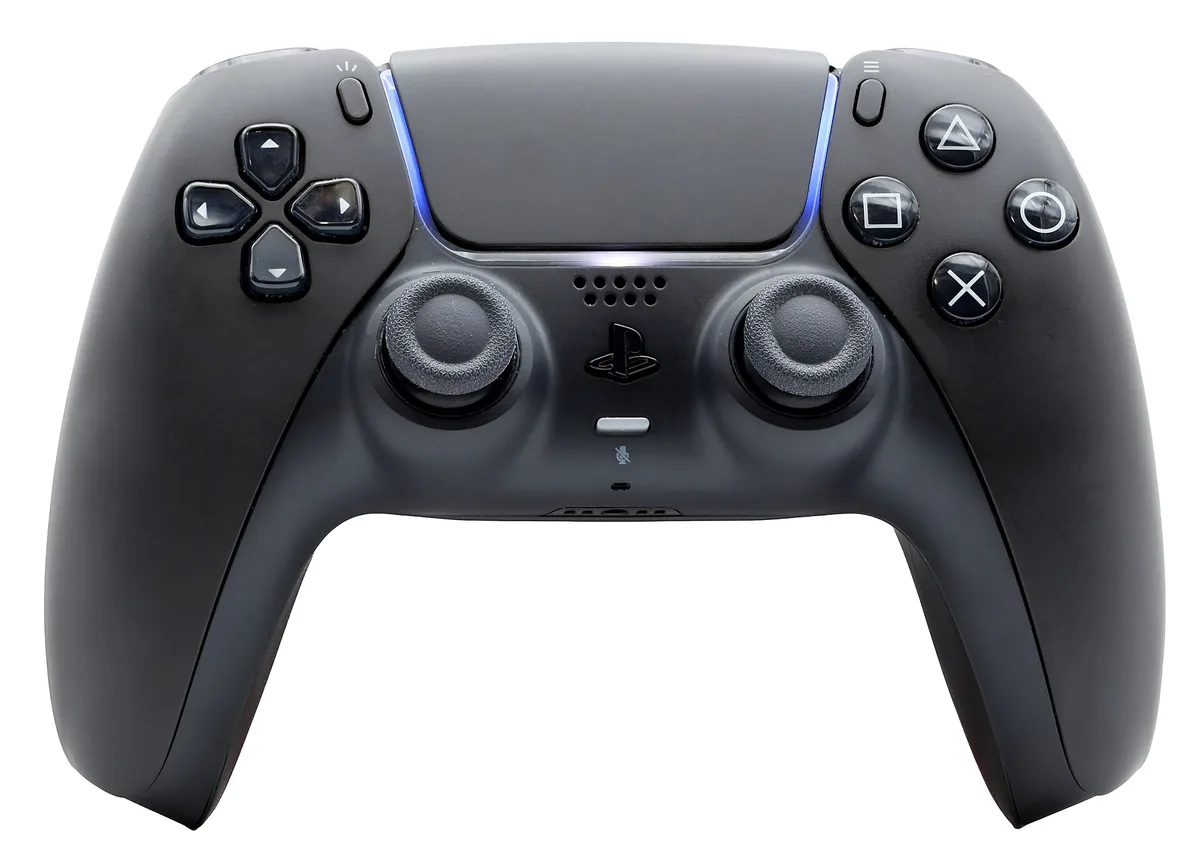
- Connect the DualSense to the computer. Sony’s instructions say to use a USB cable, and USB is what full haptics need. Bluetooth generally works, but USB is the documented, trouble-free option.
- Join a Discord voice channel on desktop, click Go Live, pick the Remote Play window, and turn on the sound toggle so game audio goes with it.
- While live, hover the preview, open the gear, and set Stream Quality to the resolution and frame rate you want.
Quality. There is no manual 1080p switch on a PS5. Sony documents Standard 540p and Low 360p, then notes that on PS5 you may not see the setting at all, because up to 1080p is applied automatically depending on your connection. It rarely matters here, since Discord caps free accounts well below what Remote Play delivers.
What goes wrong. Latency stacks, because Remote Play encoding and network time sit on top of Discord’s own stream delay. Fine for co-op and chatting, poor for anything competitive. Streaming apps such as Netflix and Prime Video show black to viewers, which is copy protection working as intended. If the whole window shows black, the commonly reported fixes are turning off Discord’s Hardware Acceleration, sharing the entire monitor instead of the Remote Play window, or running Remote Play windowed. HDCP is not involved anywhere in this method, because Remote Play is a network stream rather than an HDMI signal.
Method 2
Capture card plus OBS, the version that looks good
A capture card takes the HDMI signal the console already sends to your TV, digitizes it, and hands it to a PC over USB as plain data. Nothing crosses your network first, so the picture is the console’s real output, and OBS adds overlays, a camera and scenes. This is also how to stream PS5 to Discord without Remote Play, because it is the only other route that exists.
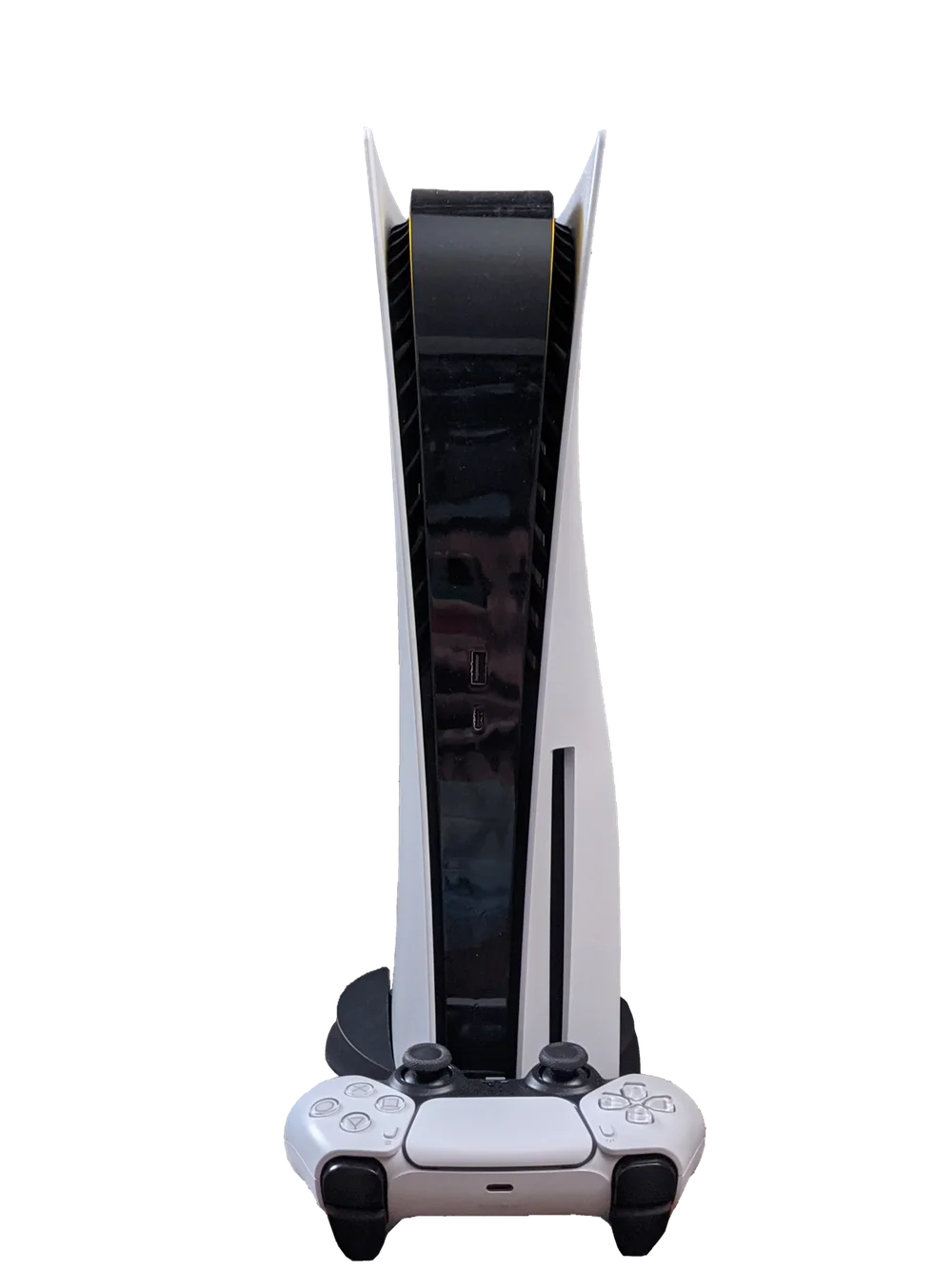
Turn off HDCP first, before you unplug anything. The PS5 enables copy protection on its HDMI output by default, and Elgato is explicit that you must disable it for a capture card to work. The catch is the order: with HDCP on, the card passes a black image rather than an error, so plug the card in first and you cannot see the menu you need to reach.
Do this first
- Connect the PS5 straight to a TV or monitor over HDMI, with no capture card in the chain yet.
- On the home screen go to Settings, System, HDMI.
- Toggle Enable HDCP off.
- Now power down and build the capture chain.
This applies to the PS5 and PS5 Pro alike. Copy protection re-arms for media apps whatever the setting says, so Netflix, Prime Video, Disney Plus, Hulu, Peacock, Paramount Plus, Apple TV Plus and disc playback can never be captured.
The chain. PS5 HDMI OUT into the card’s HDMI IN. The card’s HDMI OUT into your TV, which is the lag-free passthrough feed you play on. The card’s USB-C into a USB 3 port on the PC. In OBS, add Sources, plus, Video Capture Device and select the card. Our OBS settings guide covers the encoder side.
Now the part that trips everyone up. The obvious next step is OBS Virtual Camera, so the capture appears as a webcam in Discord. Do not. The OBS virtual camera carries video only and no audio, which is by far the most common question about it. Discord’s camera slot only ever carries video, and your voice comes from your microphone input, so a virtual camera fundamentally cannot deliver game sound.
Use a projector and screen share instead. In OBS, right click the preview and choose Windowed Projector (Preview), or send a Fullscreen Projector to a second display. Then in Discord use Go Live, share that projector window, and turn sound sharing on. Discord captures screen share audio on the Windows desktop app, the macOS desktop app, the Chrome browser and mobile, but not on Linux or other browsers. One extra step helps: in OBS Advanced Audio Properties, set the capture card track to Monitor and Output so the sound plays out of the device Discord is grabbing. Sharing your capture card vendor’s own preview window works the same way with fewer moving parts.
One last check before you go live: unplug any headset from the DualSense. A headset in the controller removes audio from the HDMI connection, so your capture card gets a silent feed. Monitor through the PC or use a chat link cable instead.
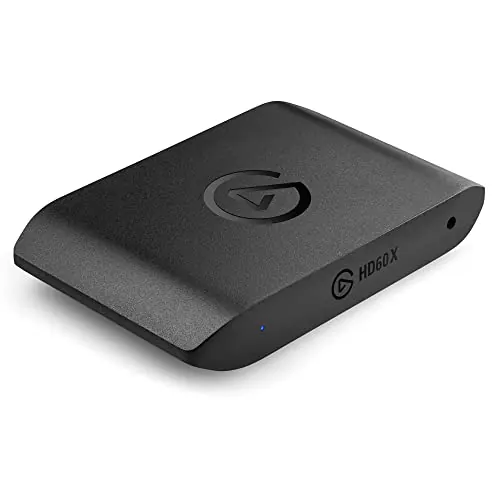
Which card. Almost none of the spec sheet matters here. Discord caps free users at 720p and 30fps, so any card capturing 1080p60 already sends double what Discord transmits, and paying more buys nothing your viewers can see. Spend on passthrough instead, since that is the feed on your own TV: if you want to keep playing in 4K or at a high refresh rate, buy the card that passes it through. Our roundup of the best capture cards for PS5 ranks them on exactly that basis, and the comparison tool puts two of them side by side. And a clean microphone does more for a Discord call than any capture upgrade, which our USB microphone guide covers.
Reference
HDCP by console, and what you have to do
Copy protection is the most common reason a capture card shows a black screen, and every console handles it differently. Worth bookmarking if more than one shares your desk.
| Console | HDCP on gameplay | What you have to do |
|---|---|---|
| PS5 and PS5 Pro | On by default | Settings, System, HDMI, Enable HDCP off, done on a TV first |
| PS4 and PS4 Pro | On by default | Disable it under Settings, System, since firmware 1.70 |
| PS3 | Always on, cannot be disabled | Nothing works, HDMI capture is impossible |
| Xbox One, One S, One X | Off by default, on for media apps | Nothing for gameplay |
| Nintendo Switch | Off by default, on for media apps such as Netflix | Nothing, there is no HDCP setting on the console |
If a Switch stays black after you exit a media app, restart the console and the protection releases.
Expectations
What Discord will actually transmit
Your setup is rarely the bottleneck here. Discord is. Every account can stream up to 720p at 30fps. Nitro subscribers can stream up to 4K at 60fps, and Nitro on iOS reaches up to 1080p60. A Go Live stream caps at 50 concurrent viewers, and up to 50 people can share video or a screen at once in the same voice chat.
Read the tier names carefully before you spend. Nitro Basic is 2.99 dollars a month and does not include HD streaming. Full Nitro is 9.99 dollars a month and does. Discord’s own support article still names a retired tier here, which has sent plenty of people to the wrong checkout page.
Two smaller limits. The browser version of Discord cannot change stream quality at all, and screen share resolution is adjustable only on desktop even with Nitro, so a phone is a viewing device rather than a control panel.
The Crossover
How to include Discord audio in a Twitch stream on PS5
Short answer: you cannot, not from the console. The PS5 broadcasts to services such as Twitch and YouTube on its own through the Create button, and that broadcast can carry your camera and PlayStation party chat audio if everyone in the party agrees. Discord is the one thing it will never include. Sony states it directly:
“Discord Voice Chat audio isn’t recorded on PS5 console captures and broadcasts.”
That is a deliberate carve-out, not a settings problem, and no menu reverses it. Native broadcast also shares your game screen and audio only, so other screens and non-game apps are invisible to viewers regardless.
The fix is to stop broadcasting from the console. Run the capture card setup above, let Discord run on the PC, and OBS can capture it like any other application. On Windows 10 version 2004 or newer and Windows 11, add an Application Audio Capture source pointed at Discord, then set global Desktop Audio to Disabled so you do not send everything twice. That source is still labeled beta and some apps do not cooperate with it, in which case Window Capture with Capture Audio ticked is the fallback. A hardware mixer can feed Discord audio into a console-direct broadcast too, but it is fiddly and outside the scope of this guide.
The remaining option is to drop Discord for that session and use a PlayStation party, whose audio the console will broadcast with every member’s consent. Since you cannot be in both at once, that is a real choice rather than a workaround.
Where Next
Picking your route
To show a friend a boss fight tonight and spend nothing, use Remote Play. The picture is soft and the input lag is real, but it takes ten minutes and Discord was going to compress it anyway. If you stream regularly, or want a camera, overlays and a picture that holds up, buy a card: the best capture cards for PS5 guide is the shortest path to the right one, and buy for passthrough rather than for Discord.
Nintendo owners have it harder, since there is no Remote Play equivalent on that side at all. Our guide to streaming a Nintendo Switch to Discord covers what works there, including why the popular USB-C shortcut does not.
FAQ
Frequently asked questions
Can you watch Discord streams on a PS5?
No. The PS5 Discord integration carries voice only, so there is no way to watch a friend go live on the console. Discord documents a watch-a-stream feature for Xbox and nothing equivalent for PlayStation, and Sony's own Discord support page lists no video features at all. The hidden PS5 browser is not a workaround either: it is undocumented, it cannot take a typed address the normal way, and nobody has shown the Discord web app running usably on it. Watch on a phone or a PC and keep the console for playing.
How do you stream a PS5 to Discord on mobile?
You cannot stream a PS5 from a phone, because Discord mobile screen share shares your phone screen and nothing else. What mobile is good for is the other side of the call: your viewers can watch a PS5 stream on the Discord mobile app on iOS or Android, under the same 50 viewer cap as desktop. Android needs version 5 or newer to share a screen and version 10 or newer to share audio, and Discord states screen share is unavailable on Xiaomi devices running MIUI. Stream quality settings can only be changed on desktop.
Can you stream a PS5 to Discord without Remote Play?
Yes, but only with a capture card and a PC. There is no third path. The console cannot broadcast to Discord and Discord cannot pull video from the console, so the picture has to reach a computer either over your network with PS Remote Play or over HDMI through a capture card. Anything else you see recommended is one of those two with extra steps. If you want to avoid Remote Play because of the added latency, the capture card route is the answer, and it is the one that also gives you overlays and a camera in OBS.
Why does my capture card have picture but no game sound?
Almost always because a headset is plugged into the DualSense. Elgato states it plainly: on a PlayStation 4, PlayStation 5, Nintendo Switch or Switch 2, connecting a headset removes audio from the HDMI connection, which is the connection your capture card reads. Unplug the headset and the sound comes back. If you need to hear the game while you stream, use an Elgato Chat Link or Chat Link Pro cable, or plug your headphones into the PC and monitor through OBS instead of through the controller.
Which capture card should you buy for streaming a PS5 to Discord?
The cheapest reliable one with HDMI passthrough. Discord caps free users at 720p and 30fps, so any card that captures 1080p60 is already sending double what Discord will transmit, and a more expensive card changes nothing your viewers can see. What does matter is passthrough, because that is the feed you play on: buy for the resolution and refresh rate you want on your own TV, not for Discord. Avoid the cheapest dongles with no passthrough at all, since they leave you with no picture to play on.