CreatorConfig is supported by its audience. We may earn commissions from qualifying purchases through affiliate links on this page. Full disclosure
What a capture card changes on Xbox
The best capture card for most Xbox owners is the Elgato 4K S at $159.99, which passes 4K60 HDR and VRR through to your TV, captures up to 4K60, and has the 3.5 mm line-in that Xbox chat wiring needs. Series X players on a 4K120 TV should buy the AVerMedia Live Gamer ULTRA 2.1 instead.
An Xbox already streams to Twitch on its own, so the card is not the price of entry. It is the upgrade that buys OBS scenes, any camera you like, and recordings worth editing. The Xbox twist is what happens to your own picture: a Series X outputs up to 4K120 with VRR, a Series S tops out at 1440p120, and the card becomes the display your console negotiates with.
The Ruling
What is the best capture card for Xbox?Get the Elgato 4K S.
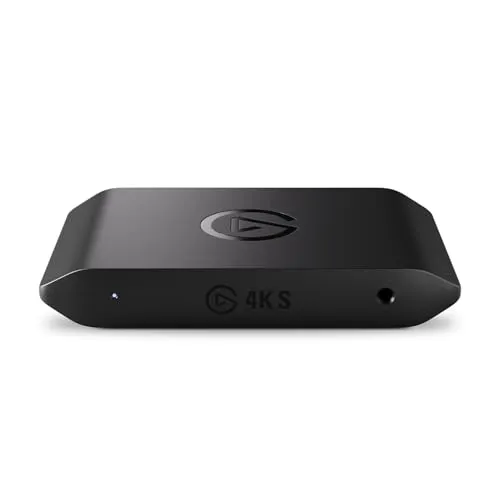
The Elgato 4K S is the best capture card for Xbox for most people, because its passthrough carries 4K60, 1440p120 and 1080p240 with VRR and HDR intact, it captures up to 4K60 over USB-C, and it is the only Elgato pick here with the 3.5 mm line-in that an Xbox chat cable plugs into. $159.99 at time of writing.
Unless…
- You play a Series X at 4K120 on an HDMI 2.1 TV: get the AVerMedia Live Gamer ULTRA 2.1.Only card here with HDMI 2.1 on both ports, and it has chat jacks built in.
- You want the same job for less: get the AVerMedia Live Gamer ULTRA S.It matches the 4K S on passthrough and beats it on capture for ten dollars less, if you can live without a line-in on the card.
- You are streaming an Xbox One or an Xbox 360: get the Elgato Game Capture Neo or the XIIXMASK card.Neither console can exceed what the cheap tier captures.
The full ranking
- Best overall for Xbox:Elgato 4K S, 4K60 HDR and VRR passthrough with a 3.5 mm line-in, $159.99
- Best for Series X at 4K120:AVerMedia Live Gamer ULTRA 2.1, HDMI 2.1 in and out plus built-in chat jacks, $199.99
- Best value:AVerMedia Live Gamer ULTRA S, 1440p144 and 1080p240 capture for $149.99
- Best first card:Elgato Game Capture Neo, 1080p60 capture with 4K60 passthrough, $129.99
- Cheapest way in:XIIXMASK HDMI capture card, a working Xbox to OBS pipeline for $25.99
This guide covers external capture cards that sit between an Xbox and your TV and send gameplay to a PC over USB. Prices are catalog prices at time of writing.
At a Glance
How the three real contenders compare
Every card trades one strength for another, so the shape matters more than the size. The 4K S is the only polygon with no collapsed axis. The ULTRA 2.1 buys a perfect passthrough and built-in chat with money; the ULTRA S matches the 4K S almost everywhere for less and pays for it on chat wiring.
Each spoke runs 0 at the center to 10 at the outer ring.
- Elgato 4K SOur pick. The only one with no weak axis.
- AVerMedia ULTRA 2.1Take it instead for 4K120 or built-in chat.
- AVerMedia ULTRA STake it instead to spend less for the same job.
| Category | Elgato 4K S | AVerMedia ULTRA 2.1 | AVerMedia ULTRA S |
|---|---|---|---|
| Capture Quality | 8/10 | 10/10 | 9/10 |
| Passthrough | 8/10 | 10/10 | 8/10 |
| HDR & VRR | 7/10 | 10/10 | 8/10 |
| Xbox Chat | 7/10 | 10/10 | 3/10 |
| Value | 8/10 | 5/10 | 9/10 |
Quick Comparison: Best Capture Cards for Xbox
Elgato 4K S
Best Overall
AVerMedia ULTRA 2.1
Best for 4K120
AVerMedia ULTRA S
Best Value
Elgato Game Capture Neo
Best First Card
XIIXMASK Capture Card
Cheapest
The Reviews
Every pick in detail
Ranked in the order most Xbox streamers should consider them. Specifications come from each vendor’s own documentation. Each card leads with what it wins on and what should send you elsewhere, so you can stop reading the moment one disqualifies itself.
Elgato 4K S
Key Specifications
Elgato names the 4K S as the successor to the discontinued HD60 X, and on an Xbox it is the one pick that never needs a caveat. Passthrough is documented at up to 2160p60, 1440p120 and 1080p240 with Variable Refresh Rate and HDR carried through, so your own picture stays what the console sent for every mode short of 4K120. Capture runs to 2160p60 in the specifications, with higher frame rates available below 4K.
The Xbox-specific reason it leads is the 3.5 mm TRS line-in. Game chat and lobby chat never leave the controller, so putting your squad on a stream means feeding a copy of the headset audio into something. With a line-in on the card, an Elgato Chat Link Pro plugs straight in and the wiring ends there. Cards without that jack push the problem onto your PC.
The limits are worth stating plainly. HDMI 2.0 means a Series X set to 4K120 negotiates down to 4K60 while the card is in the chain, invisible on a 60Hz set and obvious on a 120Hz one. HDR capture is documented only to 1080p60 and only on Windows, through Elgato Studio rather than the Camera Hub app that drives Elgato webcams. Series X, Series S and Xbox One X and S are all listed supported sources.
Why it wins
- Passthrough carries 4K60, 1440p120 and 1080p240 with VRR and HDR
- 3.5 mm line-in, so an Xbox chat cable plugs into the card itself
- Current Elgato hardware, named as the HD60 X replacement
Skip if
- You play a Series X at 4K120 on an HDMI 2.1 TV
- You want HDR capture above 1080p60, or on a Mac
- You are only ever capturing an Xbox One or Xbox 360
AVerMedia Live Gamer ULTRA 2.1
Key Specifications
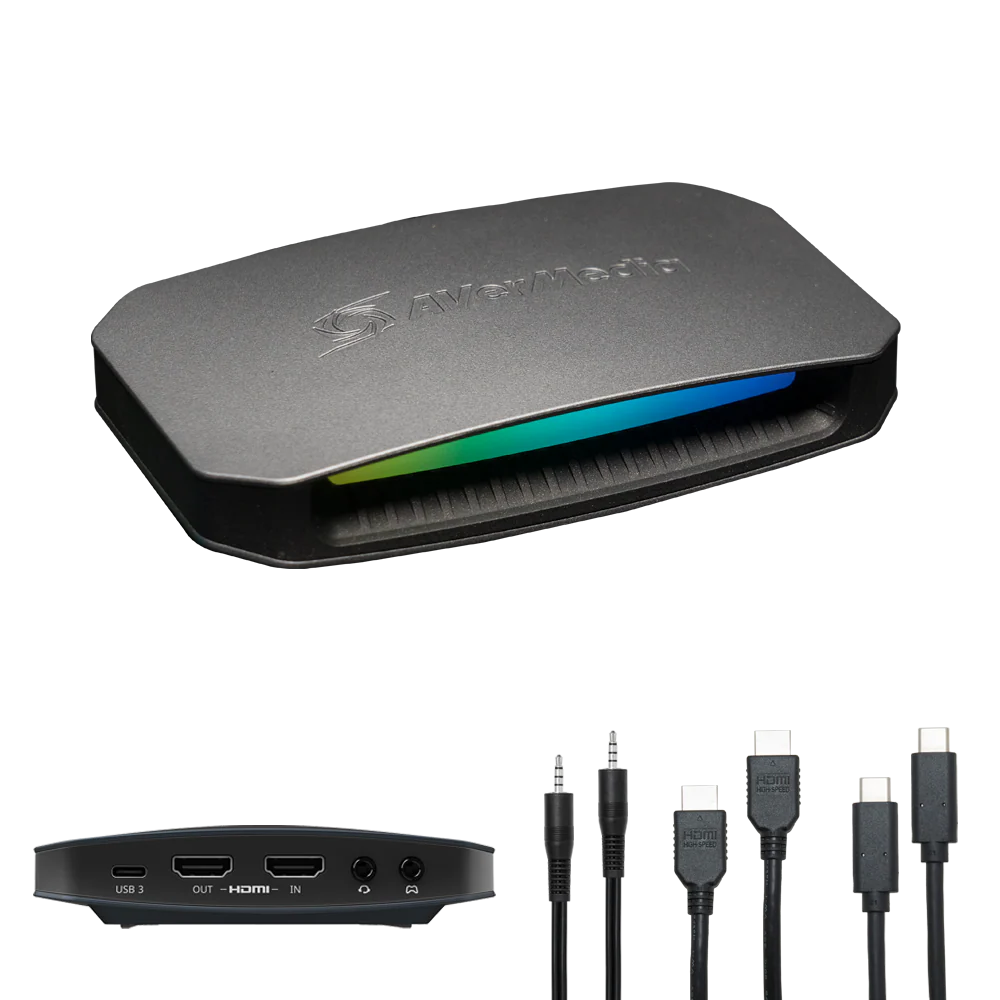
This is the card for a Series X owner who bought a 4K120 television on purpose and will not hand it back to a capture card. It is the only pick here with HDMI 2.1 on both ports, and AVerMedia documents passthrough up to 2160p144, 3440x1440 at 120Hz, 1440p240 and 1080p360, all with HDR and VRR intact. A Series X at 4K120 reaches your TV untouched.
The second argument is the one the Xbox needs and almost nobody mentions. The ULTRA 2.1 carries two 4-pole 3.5 mm jacks, one for a headset and one for the gamepad, which is built-in party chat with no Chat Link cable and nothing plugged into your PC. AVerMedia describes it as recording party chat and live commentary without an extra microphone or chat cable. On a platform where game chat never travels over HDMI, a splitter inside the card is a real convenience.
Two caveats belong next to the headline number. AVerMedia notes that a monitor with built-in Display Stream Compression may see passthrough limited to 4K120, and that both the display and the console must be HDMI 2.1. The 4K144 MJPEG mode also carries real system requirements, a Core i5-12000 series or better, an RTX 3060 or better and 16 GB of RAM. macOS capture runs through OBS at up to 2160p60, and while 5.1 is supported, LPCM is stereo only and 5.1 capture is Windows only.
Why it wins
- HDMI 2.1 both ways, so a Series X keeps 4K120 with VRR
- Two 4-pole jacks give Xbox party chat with no extra cable
- Captures 4K while you play at full refresh rate
Skip if
- Your television is 60Hz, so most of the money goes unused
- You want every capture mode inside OBS rather than AVerMedia software
- Your PC does not meet the requirements for the 4K144 mode
AVerMedia Live Gamer ULTRA S
Key Specifications
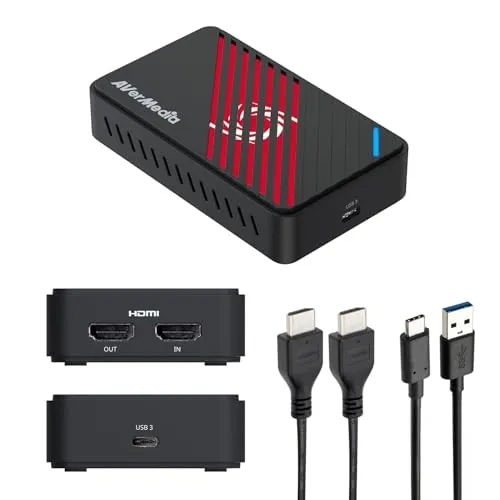
The ULTRA S is the value answer here, and the reason is arithmetic rather than enthusiasm. It costs ten dollars less than the Elgato 4K S, matches its passthrough at 2160p60, 1440p144 and 1080p240 with HDR and VRR, and beats it on the capture line, because AVerMedia documents capture at all three of those modes rather than passthrough alone. It also records uncompressed RGB24, captures VRR through AVerMedia Streaming Center, and handles ultrawide 3440x1440 sources.
On an Xbox that means a Series S owner gives up nothing at all: the console never exceeds 1440p120 and this card passes and captures 1440p144. A Series X owner on a 60Hz or 4K60 television is in the same position. Series X, Series S and Xbox One X are all listed compatible consoles.
The trade-off is the one axis the 4K S wins. AVerMedia lists no 3.5 mm line-in, so an Xbox chat cable has to terminate at your PC rather than at the card. HDR capture is also tighter than the passthrough suggests, documented at 1440p30 and 1080p60, and 5.1 capture is Windows only through Streaming Center or the OBS plug-in.
Why it wins
- Captures 1440p144 and 1080p240, not just passes them through
- Cheaper than the Elgato pick with the same passthrough ceiling
- Uncompressed RGB24 capture and VRR recording in AVerMedia software
Skip if
- You need a line-in on the card for an Xbox chat cable
- You want HDR capture above 1080p60
- You want a single vendor ecosystem with your other Elgato gear
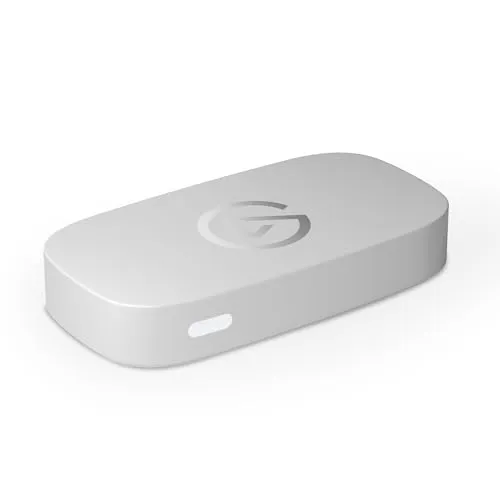
Elgato Game Capture Neo
Key Specifications
The Neo is Elgato entry card and it keeps the two numbers a straightforward Xbox stream needs: 1080p60 capture, which is what Twitch delivers to most viewers anyway, and 4K60 passthrough so your own picture is not what got cheaper. It arrives as a standard USB video device, so OBS, Streamlabs and XSplit all see it without a driver hunt.
What it gives up is refresh rate. Elgato publishes a list of its devices that handle 120Hz sources and the Neo is not on it, so treat it as a 60Hz card. On a Series X or Series S that matters, because both consoles output 1080p120, 1440p120 and 4K120, and the Neo holds the chain at 60Hz while connected. That is why the 4K S or the ULTRA S is the better buy for a current console.
Where the Neo stops being a compromise is older hardware. An Xbox One cannot exceed what it captures and an Xbox 360 cannot come close, so on those consoles the ceiling costs nothing and you get Elgato software and a support page that names your device. One practical note: at time of writing Elgato shows the Neo out of stock in both colours on its own store, so check availability before planning around it.
Why it wins
- The essentials, 1080p60 capture with 4K60 passthrough
- Exactly enough for an Xbox One or Xbox 360 with nothing wasted
- Elgato software and support at the budget tier
Skip if
- You play a Series X or Series S at 120Hz and want it passed through
- You want HDR or high frame rate capture
- You need it today and stock is thin
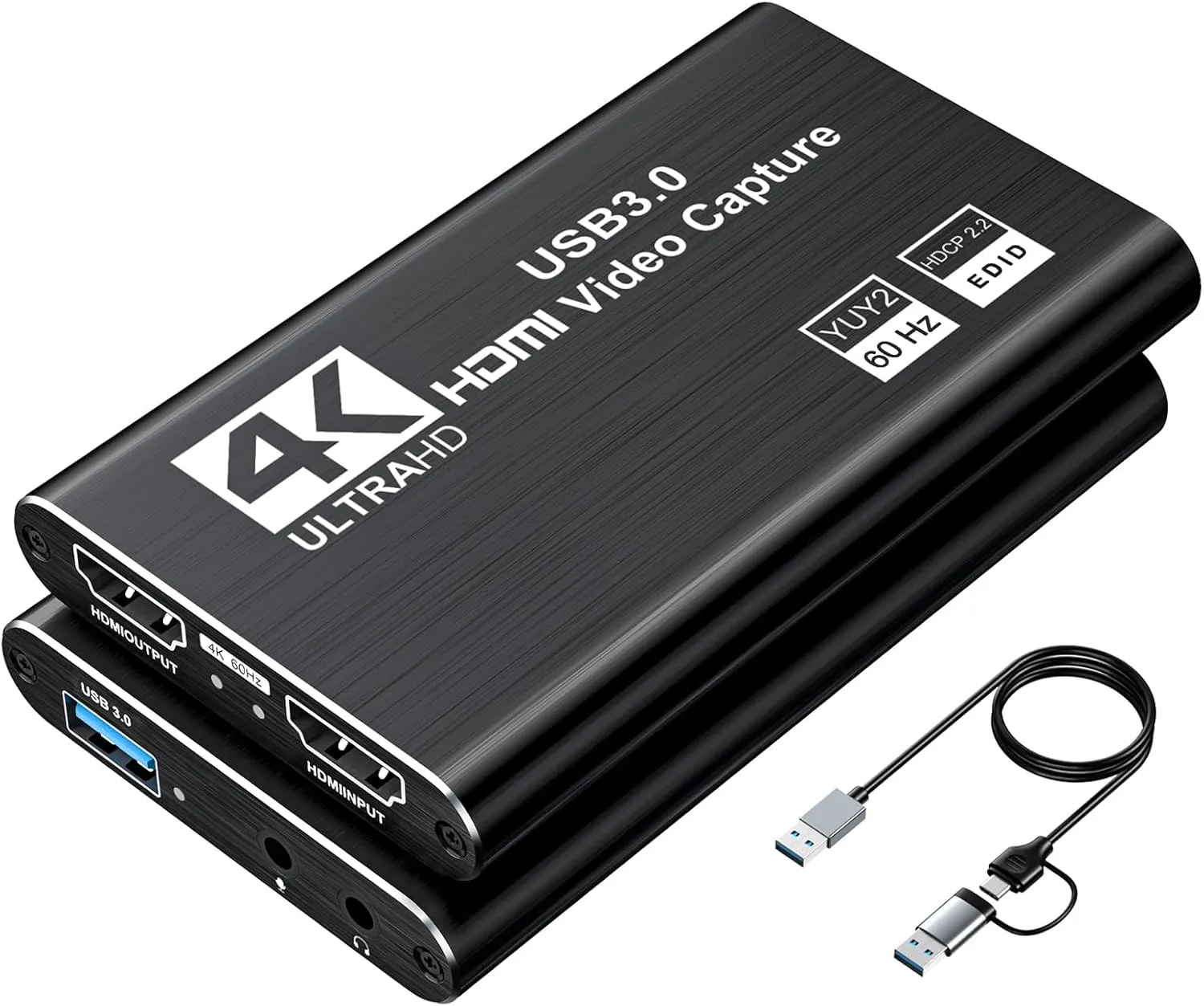
XIIXMASK Capture Card
Key Specifications
The XIIXMASK is here for one job: finding out whether capture-card streaming is your thing for less than the price of a game. It is a generic USB video device, so it appears in OBS like a webcam with no drivers, captures 1080p60, and passes 4K60 through, at least on paper.
The honesty required at this price is that generic cards vary. Quality control is looser than the name brands, claimed specifications are optimistic on some units, and there is no software, no HDR handling and no support to speak of. What you get in exchange is a working Xbox to OBS pipeline for around twenty-six dollars.
It earns a slot on an Xbox page rather than being filler because of the back catalogue. An Xbox 360 tops out at 1080p and an Xbox One is a 1080p or 4K30 class console depending on the model, so on either of them a cheap 1080p60 card is not a compromise, it is the right answer. Spend the difference on audio, which is where retro-console captures go wrong.
Why it wins
- A complete Xbox to OBS pipeline for under thirty dollars
- Driverless USB video device, appears in OBS immediately
- The right ceiling for an Xbox 360 or an Xbox One
Skip if
- You already know you will stream regularly
- You need reliable HDR or high refresh handling
- You want support when something goes wrong
Buying Guide
Series X vs Series S: what your console actually outputs
This is the decision, and almost every Xbox capture guide skips it. Microsoft lists the Series X as a true 4K console targeting up to 120 fps, with one HDMI 2.1 port and support for Auto Low Latency Mode, HDMI Variable Refresh Rate and AMD FreeSync. The Series S has the same HDMI feature list and the same 120 fps target, but is designed for gaming at 1440p with upscaling to 4K. Both run 120Hz at 1080p, 1440p and 4K, and only 4K120 needs HDMI 2.1 bandwidth.
An HDMI 2.0 capture card passes 4K at 60Hz, 1440p at up to 120Hz or 144Hz, and 1080p at up to 240Hz. That caps a Series X at 4K60 while the card is in the chain. It does not cap a Series S at all, because a Series S never asks for more than 1440p120. The HDMI 2.1 tier is a Series X purchase, not an Xbox purchase, and the corollary is worth saying out loud: a Series X owner who plays at 4K60 on a 60Hz set has the same needs as a Series S owner and should buy the same card.
HDR behaves differently from resolution. HDR10 passes through on all the current cards here, but HDR capture is card-dependent and Windows only on both Elgato and AVerMedia hardware. Dolby Vision is separate: the Series X and Series S were the first consoles to support Dolby Vision gaming, and no consumer capture card publishes support for passing it through or recording it. If the chain goes dark or the colour looks wrong with Dolby Vision game mode on, turn Allow Dolby Vision off and use HDR10 instead.
Buying Guide
Passthrough tiers and what they mean on Xbox
| Passthrough | What your TV shows while streaming | Who it suits |
|---|---|---|
| 4K30 | A visibly worse picture than the console sends | Nobody with a Series X or S, avoid this tier |
| 4K60 | Full quality for the majority of Xbox games | Most streamers on a 60Hz television |
| 4K60 + HDR + VRR + 1440p120 | HDR10, tear-free output and every 120Hz mode below 4K | Series S owners, and Series X owners not on 4K120 |
| HDMI 2.1, 4K120 and above | Everything a Series X can output, untouched | Series X on a 4K120 HDMI 2.1 set |
Troubleshooting
HDCP on Xbox: there is no toggle, and you do not need one
Most capture-card black screen advice was written for PlayStation and copied sideways, which is why so much of it is wrong for Xbox. A PlayStation enables HDCP on its HDMI output by default and makes you disable it. An Xbox does not. Elgato documents the difference directly: Xbox Series X and Series S activate HDCP only when an app that requires it is opened, such as Netflix or Hulu. Xbox game output is unprotected, which is why Xbox gameplay captures out of the box with nothing changed. HDCP does engage for disc playback and streaming apps, and it can stay active after you close one; Elgato’s guidance for Xbox One applies to the newer consoles too, which is to restart the console.
So if your card shows black and you have not been in a streaming app, look elsewhere. In order of likelihood: the console is plugged into the port labelled OUT instead of IN; the Xbox is asking for a mode the card cannot carry, which on an HDMI 2.0 card means 4K120; there is a DVI adapter, cheap splitter or HDMI switch in the chain; or the cable is not rated for the bandwidth. One narrower case is worth knowing: with FreeSync or VRR enabled, some monitors are reported to blank the passthrough intermittently, and disabling VRR at the console is the fastest test.
Audio
Getting party chat onto your Xbox stream
Game audio always travels over HDMI, so your capture card hears the game with nothing configured. Voice is the problem, and on Xbox it splits into two cases that behave completely differently.
Party chat is free. Xbox Series X, Series S and Xbox One can send party chat to two outputs at once. In Settings, General, Volume and audio output, set Party chat output to “Headset and speakers”, and it goes to your headset and over HDMI to your capture card at the same time.
Game chat and lobby chat are not. Elgato is blunt about the limit in the same article: the setting does not affect game chat or lobby chat, and the console only sends those to the connected headset. That covers squad comms, proximity chat and the in-game voice in Call of Duty and Sea of Thieves. It is a Microsoft-side limitation, not something a capture card can fix, and it is why chat cables still exist.
There are three hardware answers. A chat cable such as the Elgato Chat Link Pro splits the audio coming out of the controller and sends it both to your headset and to the capture card 3.5 mm line-in. It needs a wired headset plugged into the controller, since USB and wireless headsets do not work directly, and it carries what you hear rather than what you say, so your microphone is still a separate source in OBS. A card with its own chat jacks, such as the AVerMedia Live Gamer ULTRA 2.1, does the same job internally. Or a mix-amp with a line output feeds the chat leg into your interface alongside your mic; our console mixer guide covers that wiring, and the same signal flow applies on Xbox.
The Chat Link route needs a 3.5 mm line-in on the card, which the 4K S has and the ULTRA S and the cheap cards do not, in which case the cable goes to your PC instead. Discord voice on Xbox behaves like console voice chat, so assume it needs the same routing; the reliable way to get Discord onto a stream is to run it on the streaming PC.
Setup
How to set up a capture card with an Xbox
The wiring takes five minutes. Run an HDMI cable from the Xbox into the port marked IN on the capture card, a second cable from the card’s OUT to your TV, then the USB cable from the card to your PC. Reversing IN and OUT is the most common mistake, and it produces exactly the black screen people blame on copy protection.
Then set the console output. The menu is Settings, General, TV and display options, which holds Resolution and Refresh rate plus a Video modes submenu with the Allow toggles for 4K, HDR10, Dolby Vision, auto low latency mode and variable refresh rate. Microsoft moves these between dashboard updates, so treat the wording as a guide rather than a script. The principle that matters is that a capture card in the chain becomes the display your Xbox negotiates with: if a video mode greys out after you insert the card, the card is the limit, not your television.
On the PC side, plug into a real USB 3.x port on the motherboard rather than a front panel header, an unpowered hub or a dock. That applies double to laptops, which is what most people mean when they search for capturing Xbox to a laptop: the card does the capture and the laptop only receives and encodes, so the port decides whether it works. The 4K S runs at 5 Gbps and the ULTRA 2.1 wants 10 Gbps for its highest modes.
OBS sees the card as a Video Capture Device with no driver installation. Set it to 1920x1080 at 60 fps and leave the rest alone until you have a picture; encoder, bitrate and keyframe interval are covered properly in our OBS Studio settings guide. Add the card audio as its own source so game volume is independent of your microphone.
Older Consoles
Xbox One and Xbox 360
Xbox One. Every card here is more than enough. Xbox One, One S and One X are HDMI 1.4 and 2.0 era machines in the 1080p and 4K30 class depending on model, so an HDMI 2.1 card is money spent on a number you cannot reach, and the Neo or the cheap generic card is the right answer. HDCP works exactly as it does on the newer consoles: off by default, on when a media app or disc starts, cleared by restarting. The party chat output setting is identical too, because Xbox One and the Series consoles share the menu system.
Xbox 360, over HDMI. Check the back of the console first. Later board revisions added an HDMI port, as did the Xbox 360 S from 2010 and the Xbox 360 E from 2013, so if your unit has HDMI it can be captured over HDMI. The earliest 2005 and 2006 units have only the A/V connector and need the component route instead, which is not a downgrade: component is analog, so copy protection never applies. Xbox 360 game output over HDMI is not copy-protected either, so a capture card sees it. Expect one quirk Elgato documents: if the display only supports 1080i or 720p, you may get no image at all, and the fix is to set the 360 to output 720p or 1080i.
Xbox 360 capture card, no audio. This has specific causes rather than a shrug. Elgato’s troubleshooting article gives the most common fix verbatim: start the console with no disc in the tray, then go to Settings, System, Console Settings, Audio, Digital Output, and select Digital Stereo. On component, composite or S-Video, the red and white analog audio leads have to be connected as well, because the video cables carry no sound. If you use HDMI for video with analog leads for audio, check the console Analog Audio setting is not switched off. An HDMI to DVI adapter anywhere in the chain removes audio outright, because DVI is video only. Two more causes from ordinary setup logic: a cheap splitter or switch can strip audio, and OBS will happily add a capture device as video only, so open Advanced Audio Properties and set it to output desktop audio.
What to buy for a 360. Any 1080p60 card works, because the console cannot exceed 1080p. Spend nothing above the cheap tier and put the savings into the audio chain, which is where these captures actually fail.
Sanity Check
Before you spend anything
Make sure the card is solving your actual problem. If your Xbox already goes live to Twitch and you like how it looks, the card buys overlays, alerts, scene switching, a real camera, other platforms and editable recordings, and nothing else. For overlays without a PC at all, a cloud service such as Lightstream sits between the console and Twitch. If your stream sounds wrong, no video hardware fixes it, and if OBS stutters or looks blocky, that is usually the encoder rather than the card; our OBS settings guide costs nothing to apply.
The same cards behave differently on other consoles. PlayStation owners have an HDCP toggle to deal with, covered in our best capture cards for PS5 guide. Switch owners get dock-specific advice in the best capture cards for Nintendo Switch guide. If 1080p60 is the ceiling you actually need, the best capture cards for 1080p 60fps guide is the cheaper read, and PC players at high refresh should start with best capture cards for 1440p 144Hz instead.
For the rest of the setup, the setup builder checks that your parts work together, the comparison tool puts two cards side by side, and completed setups and the parts database are there if you would rather start from something that already works. One note for upgraders: if you own an Elgato HD60 X it is discontinued but still supported, still passes 4K60 HDR10 with VRR and captures up to 4K30, so there is no reason to replace it.
FAQ
Frequently asked questions
Do you need a capture card to stream Xbox?
No, not to go live. Xbox Series X, Series S and Xbox One broadcast to Twitch directly from the console, and since late 2022 you do not even need the Twitch app to do it. You need a capture card the moment you want something the console cannot do on its own: custom overlays and alerts, a camera that is not the Xbox camera, scene switching, streaming anywhere other than Twitch, or recording high-bitrate footage worth editing. If you only want gameplay live on Twitch, save the money.
Does Xbox have HDCP, and is there a toggle?
There is no toggle, and you do not need one. Unlike a PlayStation, which enables HDCP by default and makes you turn it off, the Xbox leaves game output unprotected. HDCP only switches on when you open a media app such as Netflix, Hulu or Disney+, or play a disc, which is why Xbox gameplay captures straight out of the box. If HDCP stays stuck on after you close a streaming app, restarting the console clears it.
Why is my Xbox capture card showing a black screen?
On Xbox it is usually not HDCP. Check, in this order: the console is plugged into the port marked IN on the card and the TV into OUT; the Xbox is not asking for a mode the card cannot carry, since an HDMI 2.0 card cannot pass 4K120; there is no DVI adapter, cheap splitter or switch in the chain; and the HDMI cables are rated for the mode you want. If you have been in a media app, restart the console. One narrower cause: with VRR or FreeSync on, some monitors are reported to blank the passthrough intermittently, so turning VRR off is a quick test.
How do I get Xbox party chat onto my stream?
For party chat it is free. In Settings, General, Volume and audio output, set Party chat output to "Headset and speakers", which sends chat to your headset and over HDMI to the capture card. Game chat and lobby chat are different: the Xbox only ever sends those to the connected headset, and no setting changes it. They need hardware, either a chat cable such as Elgato Chat Link Pro that splits the audio out of a wired controller headset into the card 3.5 mm line-in, a card with its own chat jacks like the AVerMedia Live Gamer ULTRA 2.1, or a mix-amp with a line output.
What capture card do I need for an Xbox Series S?
Less than you think. The Series S targets 1440p and up to 120 fps, and an ordinary HDMI 2.0 capture card passes 1440p at up to 120Hz or 144Hz, so unlike a Series X a Series S is not capped by a mid-priced card at all. The expensive HDMI 2.1 tier exists to carry 4K120, which a Series S never outputs. Buy the Elgato 4K S or the AVerMedia Live Gamer ULTRA S and put the difference into your microphone.
Do I need HDMI 2.1, or will a capture card cap my Xbox?
Only if you play at 4K120 on a 4K120 TV. A capture card becomes the display your Xbox negotiates with, so an HDMI 2.0 card holds a Series X at 4K60 while it is in the chain: full quality for most games, half the refresh rate in the 120 fps modes. At 1440p120 and 1080p120 or 240, HDMI 2.0 is fine. Match the card to your television, not the console, because 4K144 passthrough on a 60Hz set buys a number you never see.
Can I use a capture card with an Xbox and a laptop?
Yes, and it is the standard setup for anyone without a second desktop. The card does the capture; the laptop only receives it over USB and encodes. What matters is the port: use a real USB 3.x port on the laptop itself rather than an unpowered hub or a dock, because bandwidth is where these setups fail. The Elgato 4K S runs at 5 Gbps and the AVerMedia ULTRA 2.1 wants 10 Gbps for its highest modes. Capturing 1080p60 is undemanding; 4K is where thin laptops struggle.
Why does my Xbox 360 capture card have no audio?
Five causes, in the order worth checking. First, the console digital audio setting: with the 360 started and no disc in the tray, go to Settings, System, Console Settings, Audio, Digital Output, and select Digital Stereo. Second, on component or composite video the red and white analog audio leads have to be connected too, because the video cables carry no sound. Third, if you use HDMI for video and analog leads for audio, check the console Analog Audio setting has not been switched off. Fourth, an HDMI to DVI adapter anywhere in the chain kills audio, because DVI is video only. Fifth, check that the capture app is not muted and that OBS is set to output the device desktop audio.