The short version: you need a capture card
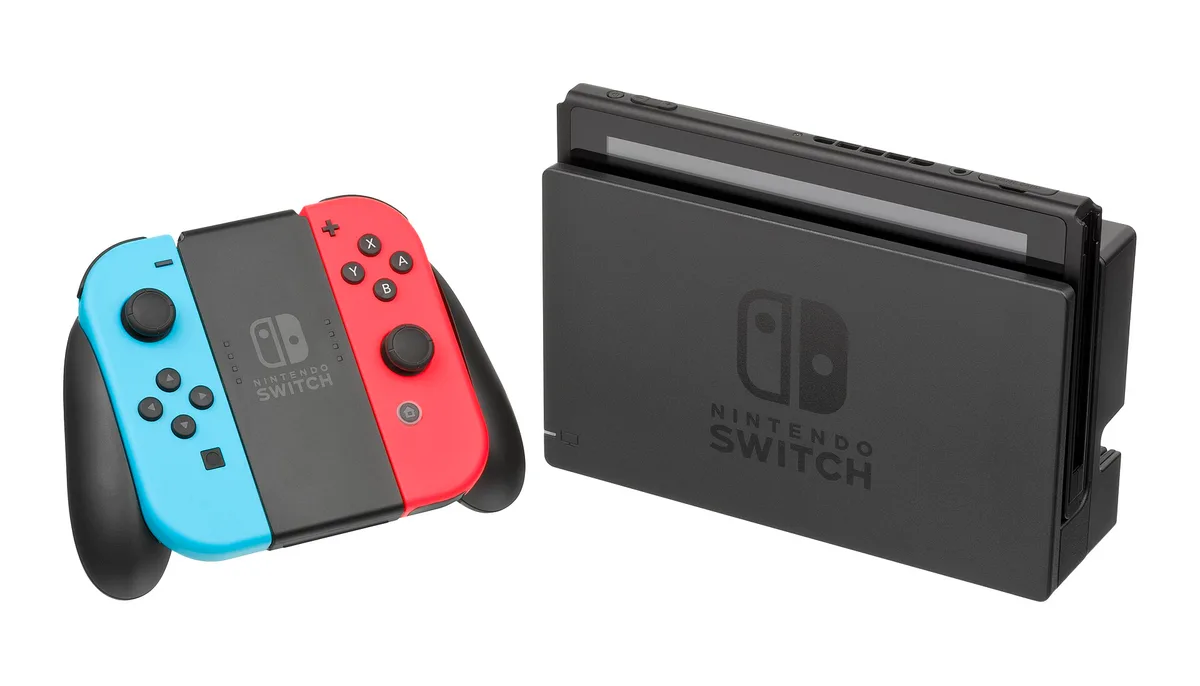
No Nintendo Switch has a Discord app, none of them can broadcast to anything on their own, and Nintendo has never shipped an equivalent of PS Remote Play that mirrors the console to a computer. That leaves one real route: dock the console, run its HDMI into a capture card, and screen share OBS in Discord. The good news is that the Switch is the easiest console there is to capture, with no copy-protection step to fight. The bad news is the part most guides lie about, so we will deal with that first.

The Honest Answer
How to stream a Switch on Discord without a capture card
There is no good way. That is the whole answer, and every page that claims otherwise is either describing the phone trick below or repeating something that does not work. It is worth understanding why, because the reasons rule out the shortcuts people keep recommending.
The phone-camera trick is the only zero-hardware option. Point a phone or a webcam at your television, then share that camera in a Discord call. It works, in the sense that your friends see something. What they see is glare and moire patterning off the panel, game audio picked up as room noise alongside everything else in your house, another layer of delay, and framing that shifts whenever somebody bumps the table. For one boss fight it is fine. For anything you plan to do twice, it is not.
Do not buy a USB-C to HDMI adapter for this. Several of the highest-ranking guides on this topic tell you to connect the Switch to your PC over USB-C, and it fails twice over. First, a USB-C port on a laptop or desktop is built to send video out, not to receive it. As Lenovo puts it in its own knowledge base, these ports are generally not built to receive an HDMI signal directly, and an HDMI input is normally handled by an external capture device. A capture card is not a fancy cable: it digitizes the signal and hands it over as ordinary USB data, which is the only reason the computer can read it. Second, the console will not send video that way anyway. Elgato instructs you to connect the capture device to the dock over HDMI and specifically not to the USB-C port on the console.
GameChat and GameShare are a closed Nintendo ecosystem. On paper they sound exactly like the answer. GameChat puts up to 12 people in voice chat on a Switch 2, with up to four sharing a game screen or joining video chat at once, using the built-in microphone and an optional USB-C camera sold separately. GameShare streams the game itself so a friend can play without owning it, with a Switch 2 as host and up to four systems per session. Both work only between Nintendo consoles: no PC client, no phone client, no way to point either at Discord. GameChat also needs an active Nintendo Switch Online membership and an SMS-verified phone number on your Nintendo Account, and the free welcome offer expired at the end of March 2026.
And there is no software route. No Nintendo application mirrors a Switch screen to a PC or a phone. The Nintendo Switch App does voice chat for a handful of compatible games and nothing more. Anything advertising itself as streaming software for a Switch is the phone-camera trick wearing a different name.
The Method
Capture card into OBS, then Go Live in Discord
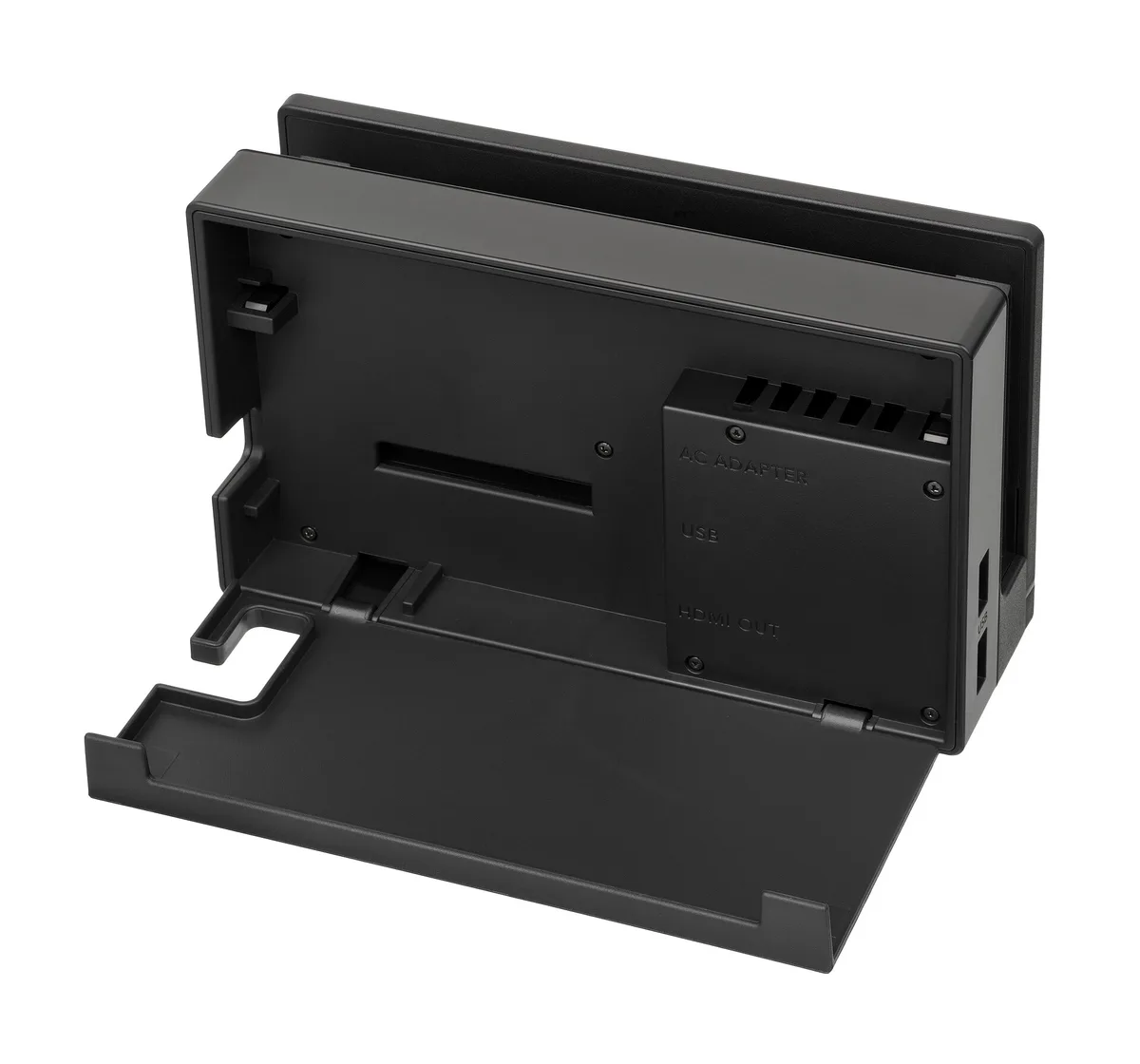
Here is the setup that actually works, and it is short, because the Switch adds almost no complications of its own. The console has to be docked. Video leaves a Switch through the HDMI port on the dock and nowhere else, on both generations, so undocking mid-stream ends the capture.
- Dock the console, then run an HDMI cable from the dock’s HDMI OUT into the capture card’s HDMI IN.
- Run the card’s HDMI OUT to your television. That is the lag-free passthrough feed you play on.
- Connect the card to your PC over USB, using a USB 3 port.
- In OBS, choose Sources, plus, Video Capture Device and select the card. Game audio arrives over HDMI with it, so on Windows there is nothing else to route. On macOS, add an Audio Input Capture source and select the capture device as well.
- Right click the OBS preview and choose Windowed Projector (Preview), or send a Fullscreen Projector to a second display.
- In Discord, join a voice channel, hit Go Live, share that projector window, and turn the sound toggle on.
Do not use OBS Virtual Camera
The obvious shortcut is to turn on OBS Virtual Camera so the capture appears as a webcam in Discord. It carries video only and no audio at all, which makes it the single most common complaint about the feature. Discord’s camera slot only ever carries video, and your voice comes from the microphone input, so a virtual camera fundamentally cannot deliver game sound. Use the projector and Go Live instead. Discord captures screen share audio on the Windows desktop app, the macOS desktop app, the Chrome browser and mobile, but not on Linux or other browsers.
Now the genuinely good news. Unlike a PS5, there is no copy-protection dance here. Elgato documents HDCP as off by default for Switch gameplay, and there is no HDCP setting anywhere in Switch system settings because there is nothing to toggle. Ignore any guide telling you to disable HDCP under TV Output, because that setting does not exist on either generation. Nor is there one to change on a Switch 2: you dock it and plug the dock’s HDMI into your capture card. The one exception on both is media apps. Netflix, Hulu and their equivalents do assert copy protection and will black out a capture card, and if the console stays black after you close one, restart it.
If your OBS output looks blocky or stutters once the picture is arriving, that is encoder settings rather than the capture chain, and our OBS settings guide fixes it for free.
Console Notes
Switch Lite, Switch 2 and the settings that matter
Switch Lite owners, read this first
A Nintendo Switch Lite cannot be captured at all. Nintendo states outright that it does not support TV mode, which means it has no video output hardware, cannot be docked, and has no signal for a capture card to read. No dock, adapter or third-party accessory changes that, and any product claiming to is selling you something that cannot work. Nothing in this section applies to a Lite.
Set a Switch 2 to 1080p with HDR off. The Switch 2 outputs up to 4K at 60fps docked, reaches 120fps only at 1080p or 1440p, and supports HDR10. That headline spec is where nearly every Switch 2 capture problem comes from. Elgato’s troubleshooting steps are to pick a manual TV resolution instead of Automatic, turn off 120Hz output, turn HDR off, turn off Match TV Power State and Auto Low-Latency Mode, and try the EDID options in the capture software. For Discord you lose nothing by doing all of that up front, because Discord will not transmit more than 1080p anyway, and you sidestep the whole HDMI compatibility minefield in one move.
Set TV Sound to Stereo. Under System Settings, Audio, TV Sound, choose Stereo rather than surround. Elgato says flatly that 5.1 surround will not work with any of its capture devices, and AVerMedia gives the same advice. It is a two-second change that prevents an evening of troubleshooting silent capture.
Unplug your headset. A headset in the console’s headphone port removes audio from the HDMI connection your capture card reads, and it is the number one cause of a Discord stream with a perfect picture and no sound. Use an Elgato Chat Link cable, or plug your headphones into the PC and monitor through OBS.
Test GameChat before you rely on it. Nintendo documents that GameChat is excluded from the console’s own screenshots and clips: only your game screen is captured, not the chat audio or the shared screens. Whether that exclusion also applies to the HDMI output is documented by nobody, so record a short private session and listen back before an audience finds out for you. The point may be moot in practice, since anyone using GameChat seriously has a headset in the console, which removes HDMI audio anyway.
The Hardware
Which capture card you need
For an original Switch or a Switch OLED this is the easiest buying decision in streaming. The console outputs up to 1080p at 60fps docked and nothing higher, so a 1080p60 card captures it exactly and a more expensive one records the same file. Discord then caps free accounts at 720p and 30fps on top of that, which means every card worth buying is already sending more than your viewers will receive.
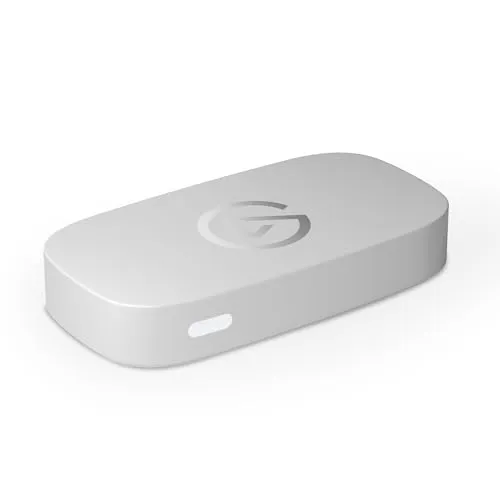
Spend the difference on passthrough instead, since that is the feed on your own television rather than the one Discord compresses. If a Switch 2 or another console shares the desk and you want to keep playing at 4K or a high refresh rate, buy a card that passes it through. Our roundup of the best capture cards for Nintendo Switch ranks them on that basis, and the comparison tool will put two of them side by side on specifications before you commit.
One warning about the bottom of the market. Some very cheap dongles run over USB 2 and cap at 1080p30, which still clears Discord’s free tier on resolution, but plenty of them have no HDMI passthrough at all. That is a dealbreaker on a console, because without passthrough you have no picture on the television to play on and you end up gaming on a laggy preview window.
Where Next
If you also own a PlayStation
The same OBS and Go Live workflow covers a PS5, with two differences. Sony turns HDCP on by default, so there is a menu toggle to reach before the capture card shows anything other than a black screen. And unlike Nintendo, Sony offers a genuine no-hardware route through PS Remote Play. Our guide to streaming a PS5 to Discord walks both methods and the copy-protection order of operations. The best capture cards for Nintendo Switch guide is still the place to start if the Switch is the console you actually stream.
FAQ
Frequently asked questions
How do you stream a Switch on Discord without a capture card?
Honestly, you do not. There is no Discord app for any Switch, no built-in broadcasting, and no Nintendo equivalent of PS Remote Play that mirrors the console to a computer. The only option that costs nothing is pointing a phone or webcam at your television and screen sharing that camera in Discord, which gives you glare, moire patterning, room noise instead of game audio, and awkward framing. It works well enough to show a friend a boss fight once. For anything you would do regularly, a capture card is the real answer.
Can you connect a Switch to a PC with a USB-C cable to stream it?
No, and this is the most repeated wrong instruction on the topic. A USB-C port on a laptop or desktop is a video output, not a video input, so it has nothing to receive an incoming signal with. A capture card works because it digitizes the video and sends it to the computer as ordinary USB data instead. Elgato is also explicit on the console side: connect the capture device to the dock over HDMI, not to the USB-C port on the console. Any guide telling you to buy a USB-C to HDMI adapter for this is describing something that cannot work.
Can you stream a Switch 2 to Discord with GameChat or GameShare?
No. Both features only work between Nintendo consoles. GameChat lets up to 12 people voice chat with up to four sharing a game screen at once, but only across Switch 2 systems, with no PC client, no phone client and no way to point it at Discord. GameShare streams the game itself to another Switch 2 or, over local wireless, an original Switch. Neither one sends a picture to a computer, so neither one gets you into a Discord call. Both also require a Nintendo Switch Online membership on the GameChat side, plus an SMS-verified phone number.
Do you have to turn off HDCP on a Nintendo Switch for capture?
There is nothing to turn off. Unlike a PS5, the Switch has no HDCP setting in system settings, and Elgato documents copy protection as off by default for Switch gameplay. Ignore any guide that tells you to disable HDCP under TV Output on a Switch, because no such setting exists on either generation. That is PS4 advice pasted onto the wrong console. The one real exception is media apps: Netflix, Hulu and similar do assert copy protection and will black out a capture card, and if the console stays black after you exit one, restart it.
Can you stream a Nintendo Switch Lite to Discord?
No, by any method involving a capture card. Nintendo states plainly that the Switch Lite does not support TV mode, which means it has no video output hardware at all and cannot be docked. No third-party dock, adapter or cable unlocks one, because there is no signal to unlock. If a Lite is the only console you own, the phone-camera approach is the only thing left, with all of its problems. Everyone else needs an original Switch, a Switch OLED or a Switch 2, all of which output over HDMI once they are in a dock.