CreatorConfig is supported by its audience. We may earn commissions from qualifying purchases through affiliate links on this page. Full disclosure
Software or hardware, decided first
Most people searching for audio mixer software do not actually want a mixer. They want one specific thing: the ability to control game audio, music, chat and their microphone as separate streams instead of one lump of desktop sound. That is a routing problem, and routing is exactly what software solves better than any hardware desk at any price. This guide covers the applications that do it, what each one is genuinely good at, and the point where you should stop adding software and buy a physical mixer instead.
What is the best audio mixer software for streaming?
VoiceMeeter Banana is the best audio mixer software for streaming on Windows, and it is free. This guide covers software mixers and routing tools, not hardware desks. If your goal is separating game audio, music, chat and your microphone into independent channels, that is a routing problem software solves better than any mixer at any price, because hardware cannot see inside your PC to split applications apart.
- Best free option:VoiceMeeter Banana, full routing control with no feature limits
- Easiest to learn:Elgato Wave Link, two mixes without learning bus letters
- Already installed:The OBS audio mixer, enough for one mic plus desktop audio
- When software runs out:A hardware mixer, for extra mic inputs, faders or console audio
Quick Comparison: Hardware for When Software Runs Out
Behringer 802S
First Hardware Step
Yamaha ZG02
Game and Chat
Scarlett 2i2 (4th Gen)
Monitoring Layer
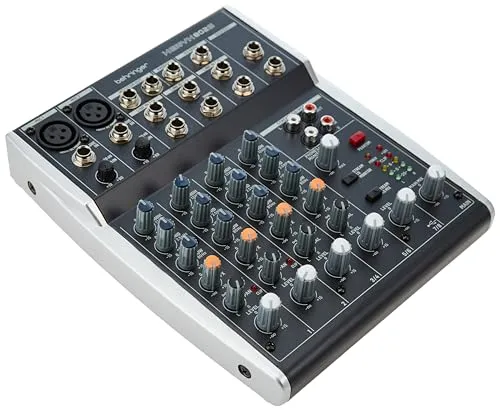
Behringer 802S
Key Specifications
If software mixing has taken you as far as it can and the missing piece is a second microphone, this is the cheapest sensible answer. Two XLR inputs with phantom power cover a host and a guest, and the built in USB audio means the blended result reaches OBS as one clean source with nothing else in the chain.
It pairs well with a software layer rather than replacing one. The usual arrangement is the 802S handling microphones and giving you physical faders, with VoiceMeeter or Wave Link still doing the application routing that no hardware can do. Each layer then does the job it is actually good at.
Why it wins
- Two XLR inputs with phantom power under 100
- Real USB audio, so no separate interface needed
- Physical faders you can reach without alt tabbing
Skip if
- Your problem is purely application routing
- You need multitrack recording per channel
- One microphone is all you will ever use
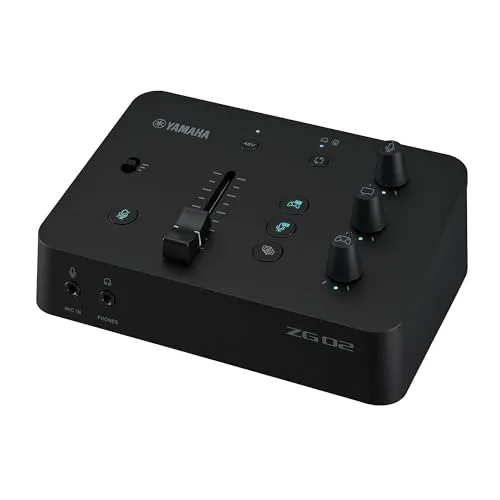
Yamaha ZG02
Key Specifications
The ZG02 is the hardware answer to the exact problem this guide is about, which is balancing game, chat and voice. It puts each on its own physical knob, so you can duck a loud game without alt tabbing, and unlike software it keeps working when the source is a console rather than a PC.
That console support is the deciding factor. VoiceMeeter cannot run on a PS5 or an Xbox, so if any part of your setup is a console, the routing has to happen in hardware. For a PC only setup, the same control is available free in software, and the ZG02 is buying convenience rather than capability.
Why it wins
- Dedicated Game, Chat and Voice knobs
- Works with consoles where software cannot
- Sends one clean USB mix to OBS
Skip if
- You stream from a PC and are happy in software
- You need more than one microphone input
- You want the cheapest possible route
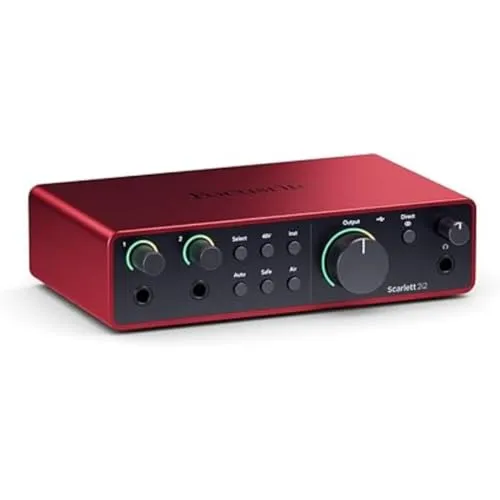
Scarlett 2i2 (4th Gen)
Key Specifications
The most common mature setup is not software or hardware but both, and this is the hardware half. An interface handles the microphone and gives you analogue direct monitoring, so you hear yourself with no delay at all, while the software layer above it handles application routing.
That split matters because monitoring is the one job software mixing does badly. Routing your own voice through the computer and back adds delay you can hear while speaking. Direct monitoring bypasses the computer entirely, and once you have it, VoiceMeeter latency stops being something you think about.
Why it wins
- Analogue direct monitoring with zero delay
- 69 dB of gain drives most dynamic microphones
- Sits under a software layer without conflict
Skip if
- You use a USB microphone and are happy with it
- You need physical faders more than clean preamps
- Your sources are consoles rather than a PC
The options at a glance
| Software | Platform | Cost | Best for |
|---|---|---|---|
| VoiceMeeter Banana | Windows | Free (donationware) | Full routing control on any budget |
| OBS audio mixer | Windows, macOS, Linux | Free | Single mic plus desktop audio |
| Elgato Wave Link | Windows, macOS | Free with Elgato hardware | The easiest path to two mixes |
| SteelSeries Sonar | Windows | Free | Gamers who want presets, not patchbays |
| Audio Hijack | macOS | Paid | The serious Mac option |
VoiceMeeter Banana
VoiceMeeter is the default answer on Windows, and it has been for years, because nothing else gives away this much routing capability for nothing. The Banana edition is the version worth learning. The base VoiceMeeter is too limited once you add a second application, and Potato adds channels most streamers never touch.
The concept that makes it click is the difference between A and B buses. The A buses feed your headphones. The B buses feed virtual outputs that other software can record. Because each input strip has its own A and B assignment, you can send music to your ears without sending it to your stream, which is the single most common reason people install it. Copyright safe VODs stop being a manual chore.
Be honest about the learning curve. The interface presents hardware inputs, virtual inputs and three output buses at once, with no wizard and no defaults tuned to streaming. Expect to spend an evening with it. The payoff is that once the routing is correct it stays correct, and every application you add later slots into a system you already understand. Set the buffer to 512 samples if you hear crackling, and restart the audio engine after any change to Windows sound devices.
The OBS mixer, which you already have
Before installing anything, check whether OBS alone covers you. Its built in mixer handles per source levels, filters such as noise gate and compressor, and monitoring choices. Open Advanced Audio Properties by clicking the gear icon in the Audio Mixer panel, and you get per source track assignment, which is how you place your microphone on track 1 and music on track 2 for a multitrack recording you can rebalance in editing later.
The hard limit is application separation. OBS captures desktop audio as one device, so it cannot natively split a browser from a game. Windows 10 build 2004 and later can do some of this through Application Audio Capture, which is worth trying first because it needs no extra software, though it remains less reliable than a dedicated routing layer on some systems. If per source filters and one desktop track are enough for your stream, stop here. Our OBS Studio settings guide covers the filter chain and sample rate settings in detail.
Elgato Wave Link and SteelSeries Sonar
Wave Link is the friendly version of the VoiceMeeter idea. It presents nine input slots, each assignable to an application, and two independent mixes labelled Stream and Monitor. That two mix model is the whole point, and it is far easier to grasp than bus letters. It is designed around Elgato Wave microphones and interfaces, and while it will run with other hardware, the supported path is smoother.
Sonar comes with SteelSeries GG and takes a different angle again, splitting audio into Game, Chat, Media, Aux and Mic streams with a parametric EQ and game specific presets on top. It asks the least of you of any option here. The limitation is that it assumes a gaming workflow, so it is less flexible if your stream involves music production or multiple guests.
Setting up VoiceMeeter for a stream
The fastest way past the learning curve is to build the routing in a fixed order and test after each step, rather than configuring everything and then debugging silence. Install VoiceMeeter Banana and restart, because the virtual audio devices it creates are not visible to other applications until Windows has reloaded its device list. Skip the restart and half the following steps will appear broken.
Set Windows to use VoiceMeeter Input as the default playback device. Everything your computer plays now arrives on the Virtual Input strip inside VoiceMeeter rather than going straight to your headphones. Then set hardware out A1 to your actual headphones or speakers, which restores your ability to hear anything. Those two steps together insert VoiceMeeter into the signal path without changing what you hear.
Next, assign your microphone to Hardware Input 1 and choose the WDM version of the device rather than the MME one, since WDM has lower latency. Set that strip to output on both A1 and B1. A1 is your headphones, so you can hear yourself. B1 is the virtual output your streaming software will record. Leave the music and game applications on the Virtual Input strip and give them B1 only if you want them in the stream, or A1 only if you want to hear them privately.
Finally, in OBS, add an Audio Input Capture source and point it at VoiceMeeter Output, which is the B1 bus. Speak, and confirm the level moves in the OBS mixer rather than only in VoiceMeeter. If the meters move in VoiceMeeter but not OBS, the source is pointed at the wrong virtual device, which is by far the most common mistake. Save the configuration as a preset once it works, because a Windows update that reorders audio devices can scramble the assignments and a saved preset restores them in one click.
When software stops being enough
There are three points where software mixing runs out. The first is inputs. If you need to plug in two or more XLR microphones for guests in the same room, no amount of routing software creates preamps. The second is physical control. Reaching for a fader mid sentence is faster than alt tabbing, and it never steals focus from a fullscreen game. The third is stability, because a hardware mixer does not crash or lose its device assignments after a Windows update.
If any of those apply, the hardware decision comes next. Start with our guide to the best audio mixers for streaming for the general case, or the best mixer for an XLR microphone if you have already chosen the mic. Console streamers should read the PS5 audio mixer guide, because console audio has routing constraints a PC does not.
The setup most established streamers end up with is not one or the other. It is an interface or small mixer handling the microphone and giving zero latency monitoring, with VoiceMeeter or Wave Link sitting behind it handling application routing. Each layer does the job it is actually good at, and neither is asked to do the other's.
Frequently asked questions
What is the best free audio mixer software for streaming?
VoiceMeeter Banana is the strongest free option on Windows. It gives you three hardware inputs, two virtual inputs and three outputs, which is enough to separate your microphone, game audio, music and chat, then send a different mix to your stream than the one you hear. It is donationware with no feature limits. The tradeoff is a genuinely steep learning curve, because it models a physical mixing desk rather than hiding the routing behind presets.
Do I need mixer software if OBS already has an audio mixer?
For a lot of streamers, no. The OBS audio mixer handles per source volume, filters and monitoring, which covers a single microphone plus desktop audio. You need separate mixer software once you want to route applications independently, for example keeping music out of your VOD while still hearing it, or sending a clean mix to a guest on Discord. OBS cannot split desktop audio into individual applications on its own, and that limitation is the usual reason people add VoiceMeeter or Wave Link.
What is a virtual audio cable and why do I need one?
A virtual audio cable is a software device that appears to Windows as both a playback output and a recording input, so anything sent to it can be captured by another application. It is the mechanism that lets you route Spotify into OBS as its own track, or feed a processed microphone into Discord. VoiceMeeter installs its own virtual cables during setup. If you only need one extra route, VB-Audio Virtual Cable on its own is lighter than a full mixer.
Does audio mixer software add latency to my stream?
Yes, but usually a small and fixed amount. VoiceMeeter adds buffering measured in single digit milliseconds when the buffer size is set sensibly, which is inaudible on a stream because the platform delay is already several seconds. The latency that matters is what you hear in your own headphones while talking. If your voice sounds delayed as you speak, lower the buffer size, or monitor directly from an audio interface instead, which bypasses the computer entirely.
Should I use software mixing or a hardware mixer?
Use software if your needs are about routing applications, and hardware if they are about physical controls and inputs. Software wins on cost, on separating browser, game and chat audio, and on multitrack recording for editing later. Hardware wins on tactile faders you can reach without alt tabbing, on clean preamps for XLR microphones, and on reliability, because a hardware mixer cannot crash mid stream. Many established setups run both, with an interface or mixer feeding a software layer that handles the application routing.