You picked up an audio interface, plugged it in, and now you are staring at a row of knobs, switches, and lights wondering what half of them do. That is normal. Audio interfaces are not complicated once you understand the logic behind them, but nobody hands you a guide when you buy one.
This post walks through how to use an audio interface from the moment you set it on your desk through daily operation as a streamer, podcaster, or musician. We cover the front panel, gain staging, OBS Studio routing, DAW recording, monitoring, and the mistakes most beginners make without realizing it.
If you have not connected your interface to your computer yet, start with our guide to connecting an audio interface to your computer and come back here once you have audio flowing.
Understanding the Front Panel
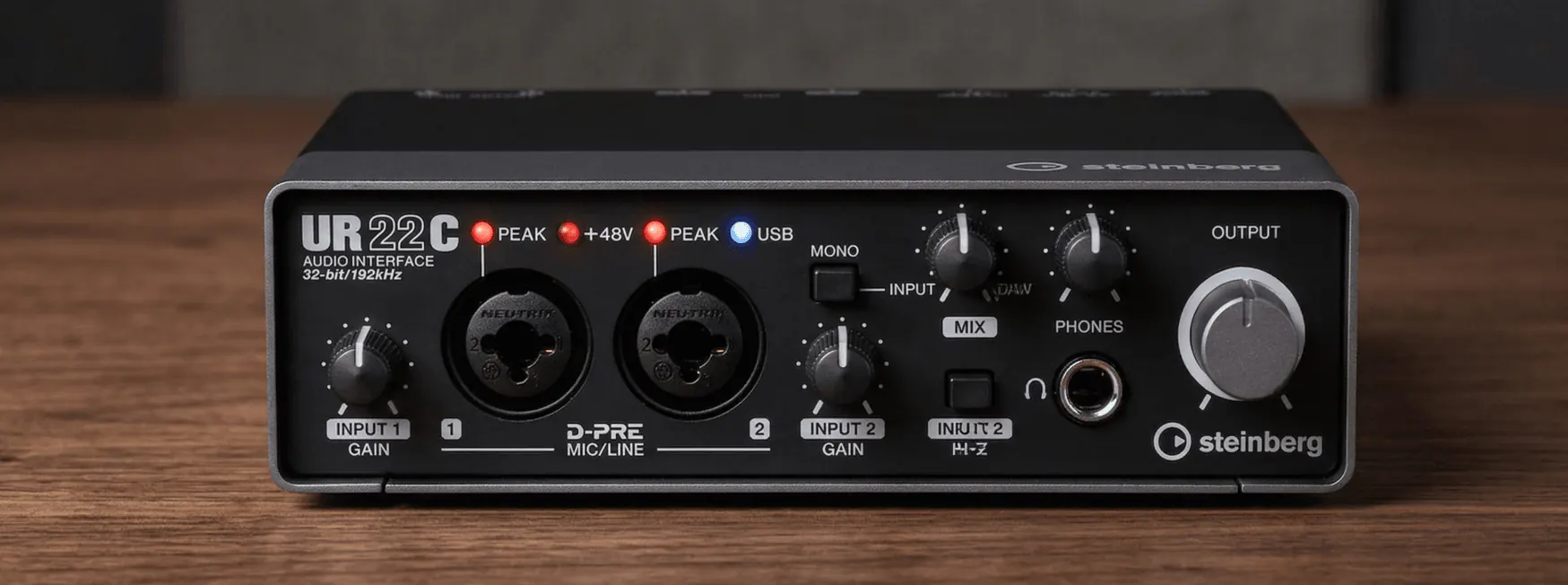
The front panel of your audio interface is where you will spend most of your time. Every interface is slightly different, but the core controls are nearly universal across brands like Focusrite, PreSonus, MOTU, and Steinberg.
Gain Knobs (Input Level)
Each input channel has a gain knob, sometimes labeled Input or Preamp. This controls how much amplification is applied to the signal coming from your microphone or instrument. Turn it up and your mic gets louder. Turn it up too far and the signal distorts.
The goal is to set the gain so your loudest speaking voice lights the signal meter in the green or yellow range without ever touching red. Most interfaces have an LED ring or meter around the gain knob that shows you signal level in real time.
A common mistake is cranking the gain to max because your voice sounds quiet. In most cases, the problem is not the gain. It is your microphone technique, your distance from the mic, or your downstream software settings.
Phantom Power (48V)
The button labeled 48V or Phantom Power sends 48 volts of DC power through the XLR cable to your microphone. This is required for condenser microphones to function. It does nothing for dynamic microphones like the Shure SM7B or the Electro-Voice RE20.
Rules for phantom power:
- Turn it on only when using a condenser mic that requires it
- Turn down your monitors or headphones before engaging phantom power to avoid a loud pop
- Do not plug or unplug microphones while phantom power is active
- Turn phantom power off before disconnecting cables
If your mic sounds completely dead and you are using a condenser, check phantom power first. It is the most common reason a new setup produces no audio.
Direct Monitoring
The direct monitor button routes your microphone input straight to your headphones with zero latency, bypassing the round trip through your computer. This is essential when recording vocals or instruments because the processing delay through your DAW can make it nearly impossible to perform naturally.
When direct monitoring is on, you hear yourself in real time. When it is off, you hear the processed signal returning from your computer, which has a slight delay. For streaming, most creators leave direct monitoring on so they can hear themselves without distraction.
Some interfaces offer a mix knob instead of a simple toggle. The mix knob lets you blend between the direct (zero-latency) signal and the computer return signal. For most streaming and podcasting workflows, set the mix knob fully toward direct monitoring.
Headphone Volume
This one is straightforward. It controls how loud your headphone output is. It does not affect what your stream or recording hears. It only affects what you hear in your own ears.
Setting Up Your Audio Interface for Streaming
Once your interface is connected and your microphone is producing clean signal, you need to tell your streaming software where to find that audio. OBS Studio is the most common choice, so we will walk through it here.
Configuring OBS Studio
In OBS Studio, open Settings and navigate to the Audio section. Select your audio interface by name from the mic dropdown. It will appear as whatever brand and model you own, such as Scarlett Solo USB or M2 USB Audio.
Do not select Default unless your interface is set as the system default device. Explicitly selecting your interface by name prevents problems when you plug in a webcam or headset that changes the default device.
Once selected, speak into your microphone and watch the mixer in the main OBS window. You should see the mic audio meter moving. If it is not moving, check these things in order:
- Is the gain knob on your interface turned up?
- Is phantom power on (if using a condenser mic)?
- Is the correct input selected in your interface control panel software?
- Is the OBS audio source set to the right device?
At this point, an audio interface already delivers dramatically better sound quality than a USB microphone or headset mic, even before you add any processing. The improved preamps, higher sample rates, and cleaner conversion make a real difference your audience can hear.
Adding Filters in OBS
Raw microphone audio is rarely ready for broadcast. OBS lets you add audio filters to clean up and enhance your sound. Click the gear icon next to your mic source in the mixer and select Filters. Here is a practical starting chain for voice:
- Noise Gate — Cuts the mic when you are not speaking. Set the close threshold around -40 dB and the open threshold around -25 dB.
- Noise Suppression — Reduces background noise like fans, keyboard clicks, and room hum. RNNoise is the best option in most cases.
- Compressor — Evens out your volume so quiet parts are louder and loud peaks are tamed. A ratio of 2:1 to 4:1 with a threshold around -18 dB is a good starting point.
- EQ (Parametric) — Shape your tone. A high-pass filter around 80 Hz removes low rumble. A small boost around 3-5 kHz adds clarity and presence to vocals.
- Limiter — A safety net that prevents your audio from clipping. Set the ceiling to -1 dB so nothing peaks into distortion.
Add them in this order: noise gate, noise suppression, compressor, EQ, limiter. The order matters because each filter processes the signal and passes it to the next one.
Using an Audio Interface with a DAW
If you record podcasts, voiceovers, music, or any content that needs editing before publishing, you will use a digital audio workstation alongside your interface. Popular DAWs for creators include Audacity (free), Reaper (affordable), Logic Pro (Mac), and Studio One.
Selecting the Interface as Your Audio Device
Every DAW has an audio settings or preferences panel where you select your input and output devices. Choose your audio interface as both the input and output device. Set the sample rate to 48 kHz for streaming and video content. Set it to 44.1 kHz only if you are producing music for release. The buffer size controls latency. For recording, a buffer of 128 or 256 samples gives you low latency without overloading your CPU.
Recording Workflow
Create a new track, set its input to the channel your microphone is connected to, arm the track for recording, and hit record. The gain knob on your interface controls the recording level. The fader in your DAW only controls playback volume, not the recorded level.
This is a critical distinction that confuses many beginners. If your recording is too quiet or too loud, fix it at the interface. Do not try to fix it with the DAW fader.
Gain Staging Best Practices
Gain staging is the process of setting audio levels at each point in your signal chain so the signal stays clean, noise-free, and at an appropriate volume. It is the single most important skill for getting professional sound from your audio interface.
Setting Input Gain
Start with the gain knob all the way down. Speak or perform at your loudest expected volume. Slowly turn the gain up until the loudest peaks light the meter into the yellow zone, typically around -12 dB to -6 dB. You want headroom so unexpected loud moments do not clip.
Do not chase the loudest possible signal. A healthy recording level has dynamic range. Quiet parts should be quiet. Loud parts should be loud. If everything is pegged near the top, you have no room for natural variation and your audio will sound compressed and fatiguing.
Avoiding the Noise Floor
Every audio device produces a small amount of self-noise. This is called the noise floor. If your gain is set too low and you boost the signal later in software, you amplify that noise along with your voice. If your gain is set correctly at the interface, the signal is strong enough to stay well above the noise floor.
This is why boosting a quiet recording in post never sounds as good as recording at the right level to begin with. Get it right at the source.
Monitoring Levels vs. Recording Levels
Your headphone volume does not affect your recording level. Your DAW fader does not affect your recording level. The OBS volume slider does not affect what gets recorded. The only thing that determines your recording level is the gain knob on your interface.
Set your gain correctly first. Then adjust your headphone volume to whatever is comfortable. Then adjust your DAW faders or OBS sliders for mix balance. These are independent controls that serve different purposes.
Monitoring Workflows
How you monitor your audio depends on what you are doing. Streaming, recording, and mixing each have different monitoring needs.
Streaming
Use direct monitoring to hear yourself with zero latency. Monitor the OBS mixer visually to confirm your levels are consistent. You do not need to hear the OBS output because the processed audio is going directly to your stream.
Recording
Use direct monitoring for the performance. You want zero latency while you record. After the take, switch to monitoring through the DAW so you can hear any processing or effects you are applying.
Mixing and Editing
Monitor entirely through your DAW. Turn off direct monitoring so you hear the processed, edited signal exactly as it will be exported. Use studio monitors or high-quality flat-response headphones for mixing.
Switching Between Streaming and Recording
Many creators stream live and also record content for later publishing. Your audio interface handles both, but the setup differs slightly for each use case.
For streaming, you want real-time processing in OBS so your audience hears polished audio immediately. For recording, you want the cleanest possible signal so you can process it later in your DAW with full control.
The simplest approach is to use your interface loopback feature if it has one. Loopback captures the audio that is playing through your computer and routes it back into the interface as an input. This lets you record your stream audio, including desktop sound, directly in your DAW while you stream.
For dedicated recording sessions where you are not streaming, close OBS and use your DAW as the primary application. This reduces CPU load and eliminates the risk of software conflicts between the two programs fighting over the audio device.
Daily Usage Tips
- Power on before launching software. Turn on your interface (if it has a power switch) before opening OBS or your DAW. This ensures the software detects the device at launch.
- Keep the gain knob in the same position. Once you find the right gain setting, leave it there. Mark the position with a small piece of tape if needed.
- Use a pop filter. Plosive sounds (the bursts of air from P and B sounds) hit condenser mics especially hard. A pop filter or windscreen protects your recordings from those spikes.
- Check for driver updates periodically. Interface manufacturers release updated drivers that fix bugs and improve compatibility.
- Keep cables organized. A loose XLR connection causes crackling, dropouts, and frustration.
Common Mistakes to Avoid
Recording Too Hot or Too Quiet
If your meters are constantly in the red, your gain is too high and you are clipping. Clipped audio cannot be fixed in post. It is permanently distorted. If your meters barely move, your gain is too low and you are recording too close to the noise floor. The sweet spot is peaks between -12 dB and -6 dB.
Using the Wrong Sample Rate
If your interface is set to 44.1 kHz but OBS is expecting 48 kHz, you will get pitch-shifted audio, crackling, or no audio at all. Make sure your interface, DAW, and streaming software all agree on the sample rate.
Ignoring Latency Settings
If you notice a delay between speaking and hearing yourself, your buffer size is probably too high. Lower the buffer in your DAW or interface control panel. If you hear clicks and dropouts, the buffer is too low for your CPU to handle.
Confusing Monitoring Volume with Recording Level
Turning up your headphones does not make your recording louder. Turning down the OBS slider does not make your recording quieter if the gain at the interface is still high. Understand which control affects which part of the chain.
Skipping Firmware and Driver Updates
Interface firmware updates fix real problems: USB disconnections on specific motherboards, crackling with certain DAW versions, compatibility with new operating systems. Install them when available.
Building Your Full Setup
An audio interface is one piece of a larger content creation setup. The way it integrates with your microphone, monitors, headphones, and software determines the quality of your final output.
If you are still choosing gear, compare audio interfaces side by side to see specs, pricing, and recommendations. You can also browse the audio equipment catalog for microphones and accessories. When you are ready to plan a complete setup, use the CreatorConfig setup builder to put together a compatible rig from scratch.
For inspiration, check out real creator setups built by other streamers and podcasters in the community. And if you run into a routing problem, a weird latency issue, or a question about a specific interface, the CreatorConfig community forums are a good place to ask.
Quick Reference
- Gain knob: Set so peaks hit -12 dB to -6 dB. Fix level problems here, not in software.
- Phantom power (48V): On for condenser mics only. Turn down monitors before engaging.
- Direct monitoring: On for streaming and recording. Off for mixing.
- OBS setup: Select your interface by name. Add filters in this order: noise gate, noise suppression, compressor, EQ, limiter.
- DAW setup: Select interface as input and output. 48 kHz sample rate, 128-256 buffer for recording.
- Daily habit: Power on interface before software, leave gain set, check cables and connections.
Learning how to use an audio interface is not about memorizing settings. It is about understanding the signal flow from your microphone through the interface, into your software, and out to your audience. Once that flow makes sense, every knob and button on the front panel has an obvious purpose. Adjust, listen, and trust your ears.